Blog

  • How to Protect Your Privacy Online: Essential Security Tools

    “`html

    Your personal data is one of the most valuable commodities on the internet today. Every website you visit, every app you download, and every search you type contributes to a growing profile that advertisers, data brokers, and sometimes malicious actors can access. The good news is that a solid lineup of online privacy security tools can dramatically reduce your digital footprint and keep your sensitive information out of the wrong hands.

    This guide breaks down the essential tools every privacy-conscious person should be using in 2024, from VPNs and password managers to encrypted messaging apps and browser extensions. Whether you are a casual user or someone who handles sensitive information regularly, these tools form the foundation of a strong personal security setup.

    Why Online Privacy Matters More Than Ever

    The scale of data collection happening right now is staggering. According to the Federal Trade Commission’s commercial surveillance report, major data brokers collect and sell information on hundreds of millions of people, often without their explicit knowledge or meaningful consent.

    Beyond corporate data harvesting, cybercriminals are becoming increasingly sophisticated. Phishing attacks, credential stuffing, and man-in-the-middle attacks have all increased in frequency and complexity. The reality is that protecting your privacy is no longer optional for anyone who uses the internet regularly, which in 2024 means virtually everyone.

    The approach here is layered. No single tool will make you completely private or secure. Instead, combining multiple tools creates overlapping layers of protection that make it significantly harder for anyone to track, intercept, or steal your information.

    1. Virtual Private Networks (VPNs): Your First Line of Defense

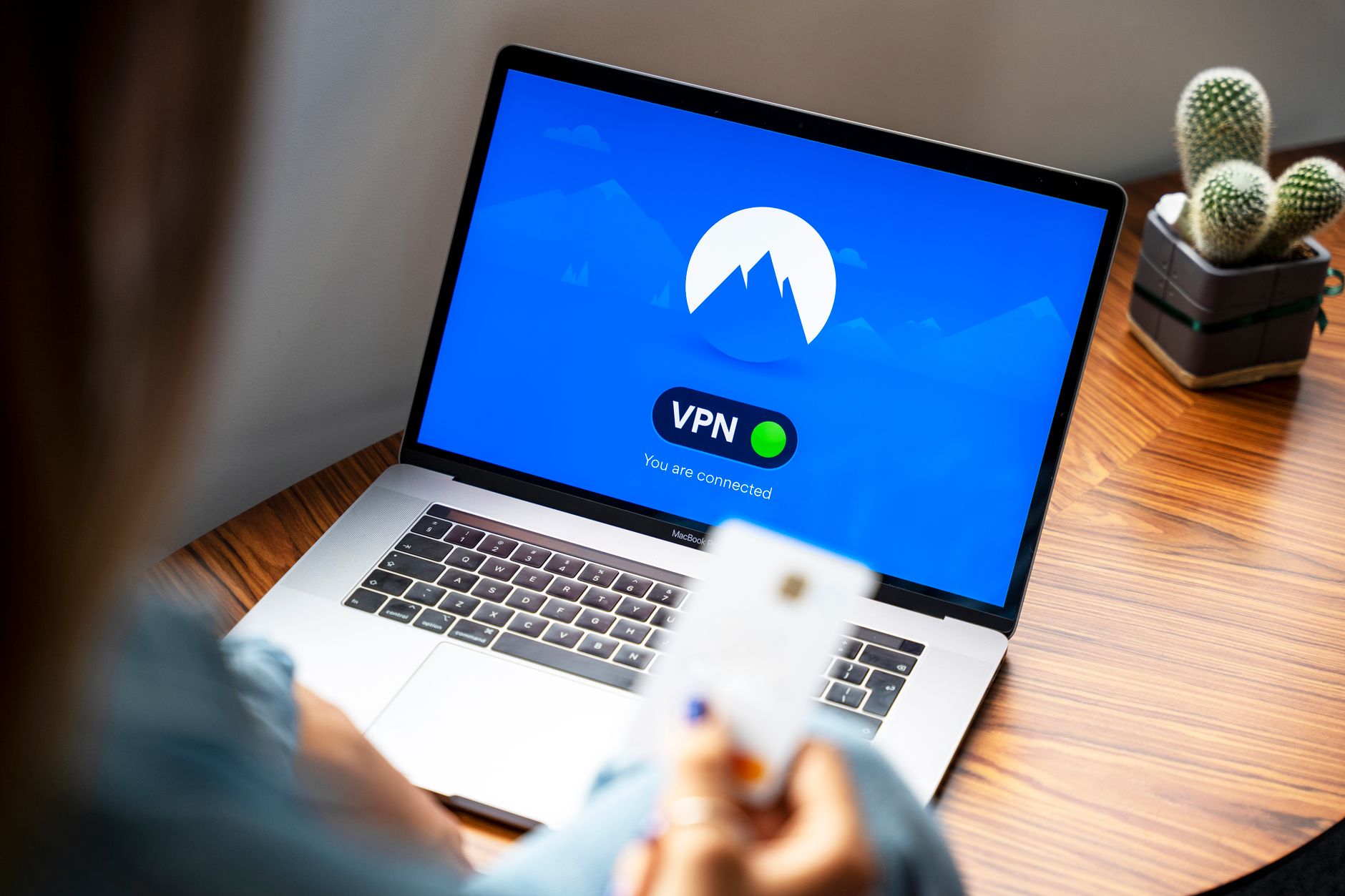
    A VPN encrypts your internet traffic and routes it through a server in a location of your choosing, hiding your real IP address and making it much harder for your internet service provider, advertisers, or hackers on public Wi-Fi networks to see what you are doing online.

    Not all VPNs are created equal. Some free VPN services have been caught logging user data and selling it to third parties, which defeats the entire purpose. When choosing a VPN, look for a verified no-logs policy, ideally one that has been independently audited.

    Top VPN Options Worth Considering

    • Mullvad VPN ‑ Widely respected in the privacy community for its strict no-logs policy and anonymous account system. You do not even need an email address to sign up.
    • ProtonVPN ‑ Built by the team behind ProtonMail, it offers a strong free tier and is based in Switzerland, outside the jurisdiction of most data-sharing agreements.
    • ExpressVPN ‑ A popular choice for ease of use with consistently fast speeds, though it sits at a higher price point.

    A VPN is most critical when you are on public Wi-Fi, such as in coffee shops, airports, or hotels. These networks are frequently targeted by attackers who can intercept unencrypted traffic with relatively simple tools.

    2. Password Managers: Stop Reusing Passwords

    Password reuse is one of the most common and dangerous security mistakes people make. When a data breach exposes your credentials from one service, attackers use automated tools to try those same credentials on banking sites, email accounts, and social media platforms. This technique, known as credential stuffing, is responsible for a massive number of account takeovers.

    A password manager generates and stores strong, unique passwords for every account you have. You only need to remember one master password. According to research from NIST’s cybersecurity framework, using unique, complex passwords is one of the most effective individual security measures available.

    Recommended Password Managers

    • Bitwarden ‑ Open-source and free for most users, with a paid tier that adds advanced features. Because it is open-source, security researchers can audit the code independently.
    • 1Password ‑ Polished apps across all platforms with strong family and team sharing features.
    • Dashlane ‑ Includes a built-in VPN and dark web monitoring, making it a good all-in-one option for less technical users.

    When setting up a password manager, take the time to go through your existing accounts and update old, reused passwords. It takes a few hours but provides lasting protection.

    3. Two-Factor Authentication: Add a Critical Second Layer

    Even the strongest password can be compromised through phishing, keyloggers, or data breaches. Two-factor authentication (2FA) requires a second form of verification in addition to your password, meaning a stolen password alone is not enough for an attacker to access your account.

    Not all 2FA methods are equally secure. SMS-based 2FA, where a code is texted to your phone, is better than nothing but is vulnerable to SIM-swapping attacks. Authenticator apps generate time-based one-time codes locally on your device, which is significantly more secure.

    • Authy ‑ Supports encrypted cloud backup of your 2FA tokens, making it easier to recover access if you lose your phone.
    • Google Authenticator ‑ Simple and reliable, though it lacks backup features unless you sync to a Google account.
    • Hardware security keys ‑ Physical devices like the YubiKey provide the strongest form of 2FA available. They are especially recommended for high-value accounts like email and banking.

    Key Insight: The Privacy Stack That Actually Works

    The most effective approach to online privacy is building a layered stack of tools that work together. A VPN protects your network traffic. A password manager eliminates credential reuse. Two-factor authentication protects your accounts even if passwords are stolen. An encrypted browser with privacy-focused extensions reduces tracking at the application layer. Encrypted messaging protects your communications. No single tool covers everything, but combined, these tools close the most common attack vectors that ordinary users face.

    4. Privacy-Focused Browsers and Extensions

    Your browser is the window through which you interact with the entire internet, making it one of the most important privacy tools you have. Standard browsers from major tech companies often collect significant amounts of data on your browsing habits.

    Browser Choices for Privacy

    • Firefox ‑ Highly configurable with strong privacy settings built in. The Mozilla Foundation is a non-profit organization, meaning its incentives are more aligned with user privacy than advertising revenue.
    • Brave ‑ Built on the Chromium engine with aggressive tracking and ad blocking built in by default. Requires less technical configuration for strong privacy out of the box.
    • Tor Browser ‑ Routes your traffic through the Tor network for maximum anonymity. Slower than other browsers but provides the strongest privacy protections available to most users.

    Essential Browser Extensions

    • uBlock Origin ‑ The gold standard for ad and tracker blocking. It is open-source, lightweight, and highly effective.
    • Privacy Badger ‑ Developed by the Electronic Frontier Foundation, it learns to block invisible trackers based on behavior rather than relying on static lists.
    • HTTPS Everywhere ‑ Automatically upgrades your connection to the encrypted HTTPS version of websites wherever available.
    • Cookie AutoDelete ‑ Automatically deletes cookies from sites you are no longer visiting, limiting the ability of trackers to follow you across the web.

    5. Encrypted Messaging Apps: Keep Your Conversations Private

    Standard SMS text messages are not encrypted and can be intercepted or accessed by carriers and government agencies with relatively low legal barriers. Even many popular messaging apps store message metadata or content on company servers where it can be accessed or breached.

    End-to-end encrypted messaging ensures that only you and the person you are communicating with can read your messages. Not the app company, not your carrier, and not anyone who intercepts the data in transit.

    • Signal ‑ Widely considered the gold standard for encrypted messaging. It is open-source, non-profit, and stores minimal metadata. Even the app’s developers cannot read your messages.
    • WhatsApp ‑ Uses the Signal protocol for end-to-end encryption but is owned by Meta, which collects significant metadata about who you communicate with and when.
    • Telegram ‑ Popular but often misunderstood. Regular Telegram chats are not end-to-end encrypted by default. Only Secret Chats use end-to-end encryption.

    For sensitive conversations, Signal is the clear recommendation from privacy and security researchers across the board.

    6. Private Search Engines: Stop Feeding the Algorithm

    Every search you type into Google is logged, analyzed, and used to build a detailed profile of your interests, concerns, health questions, financial situation, and more. Private search engines do not track your searches or build profiles on you.

    • DuckDuckGo ‑ The most mainstream private search option with decent search quality and a clean interface.
    • Startpage ‑ Returns Google search results without sending your personal information to Google. A good option if you want Google’s search quality without the tracking.
    • Brave Search ‑ Built on an independent search index rather than relying on Google or Bing results, with strong privacy credentials.

    7. Encrypted Email: Protecting Your Inbox

    Email was designed in an era when security was not a primary concern, and most email services scan your messages to serve targeted advertising or comply with government requests. Switching to an encrypted email provider adds a meaningful layer of protection for your most sensitive communications.

    • ProtonMail ‑ Based in Switzerland with end-to-end encryption for messages between ProtonMail users and strong privacy policies backed by Swiss law.
    • Tutanota ‑ A German-based encrypted email provider with a strong free tier and open-source apps.

    It is worth noting that end-to-end email encryption only applies when both the sender and recipient are using compatible encrypted email services. For most users, switching to an encrypted email provider at least ensures the provider itself cannot read your stored messages.

    Privacy Tool Comparison Table

    Tool Category Top Free Option Top Paid Option Best For Ease of Use
    VPN ProtonVPN (free tier) Mullvad VPN Public Wi-Fi, IP masking Moderate
    Password Manager Bitwarden 1Password Account security Easy
    2FA App Google Authenticator YubiKey (hardware) Account login protection Easy
    Browser Brave Tor Browser Tracker blocking, anonymous browsing Easy to Moderate
    Encrypted Messaging Signal Signal (donations supported) Private communication Easy
    Private Search DuckDuckGo Startpage Search without tracking Very Easy
    Encrypted Email ProtonMail (free tier) Tutanota Secure email communication Moderate

    Where to Start: A Practical Rollout Plan

    The list of tools above can feel overwhelming if you are starting from scratch. The key is to implement these changes gradually rather than trying to overhaul everything at once. Here is a practical order of operations based on which changes provide the most immediate protection.

    1. Install a password manager first ‑ This single change addresses one of the most common and consequential security vulnerabilities. Set it up, import your existing passwords, and start updating weak or reused ones.
    2. Enable 2FA on critical accounts ‑ Prioritize your email account first, since email is used to reset passwords for almost every other account you have. Then move on to banking and financial accounts.
    3. Switch your browser and add uBlock Origin ‑ Switching to Firefox or Brave and installing uBlock Origin takes about ten minutes and immediately reduces tracker exposure.
    4. Switch your default search engine to DuckDuckGo ‑ A two-minute change that stops feeding your search history to advertising platforms.
    5. Install Signal and invite your contacts ‑ Start moving sensitive conversations away from SMS.
    6. Add a VPN ‑ Prioritize using a VPN whenever you are on public Wi-Fi. Over time, consider running it full time on mobile devices.

    Additional Privacy Habits That Complement Your Tools

    Tools alone are not enough. Your behavior online also shapes your privacy posture significantly. The FTC’s consumer guidance on personal information security emphasizes that staying alert to phishing attempts is just as important as any technical tool.

    • Be skeptical of links in emails and text messages ‑ Even if they appear to come from trusted sources, phishing attacks often impersonate banks, delivery services, and tech companies convincingly.
    • Review app permissions regularly ‑ Many apps request access to your location, contacts, and microphone when they do not need those permissions to function. Audit these on both iOS and Android periodically.
    • Use temporary email addresses ‑ Services like SimpleLogin or AnonAddy let you create alias email addresses for sign-ups, keeping your real email address private.
    • Keep your software updated ‑ Most major security breaches exploit known vulnerabilities in outdated software. Keeping your operating system, apps, and browser up to date closes these gaps.
    • Check for data breaches ‑ Visit Have I Been Pwned to see if your email address has appeared in any known data breaches, and change affected passwords immediately.

    The Bottom Line on Online Privacy Security Tools

    Protecting your privacy online does not require technical expertise or significant financial investment. Many

  • USB-C Hubs and Docking Stations: Everything You Need to Know

    “`html

    If you have bought a modern laptop in the last few years, you have probably noticed something frustrating: the port selection keeps shrinking. Apple started the trend with the MacBook Pro, and PC manufacturers quickly followed. Today, many thin and light laptops ship with just one or two USB-C ports and nothing else. That is where USB-C hubs and docking stations come in. These accessories have gone from niche gadgets to essential tools for anyone who wants to connect a monitor, plug in a mouse, transfer files, or charge their phone without juggling adapters.

    This guide covers everything you need to know about usb c hubs docking stations, from the basic differences between a hub and a dock to what specs actually matter and which products are worth your money in 2024.

    What Is a USB-C Hub?

    A USB-C hub is a compact, usually bus-powered device that plugs into your laptop’s USB-C port and expands it into multiple ports. Think of it like a power strip, but for data and video connections. A typical hub might give you two or three USB-A ports, an HDMI output, an SD card slot, and a USB-C pass-through charging port, all in a device small enough to toss in your bag.

    Hubs are designed for portability and casual use. They draw power directly from your laptop, which means no separate power adapter is required. The tradeoff is that they have limited bandwidth and power delivery compared to their bigger siblings, the docking stations.

    What Is a USB-C Docking Station?

    A USB-C docking station is a larger, more powerful device that usually sits on your desk and connects to your laptop via a single USB-C or Thunderbolt cable. Unlike hubs, most docking stations have their own power supply. This allows them to deliver more power to your laptop through Power Delivery (PD), drive multiple high-resolution monitors simultaneously, and support more demanding peripherals without performance degradation.

    Docking stations are built for desk setups. They are the anchor of a productive workspace, letting you connect and disconnect your entire desk in one cable swap. Plug in one cable when you sit down, unplug it when you leave. That is the core value proposition.

    Hub vs. Docking Station: What Is the Difference?

    People often use these terms interchangeably, but there are meaningful differences worth understanding before you spend your money.

    Feature USB-C Hub USB-C Docking Station
    Size Compact, portable Larger, desktop-oriented
    Power Source Bus-powered (from laptop) External power adapter
    Laptop Charging (PD) Up to 100W (varies) Up to 96W or more
    Monitor Support Usually 1 display 2-4 displays possible
    USB Ports 3-6 ports typically 6-12+ ports common
    Network (Ethernet) Sometimes included Almost always included
    Price Range $20 ‑ $100 $80 ‑ $400+
    Best For Travel, light use Home office, power users
    Connection Protocol USB-C 3.2 common Thunderbolt 3/4 or USB4 common

    Understanding the Technology: USB-C, Thunderbolt, and USB4

    One of the most confusing parts of shopping for usb c hubs docking stations is the alphabet soup of connection standards. Not all USB-C ports are created equal, and the hub or dock you buy needs to match the capabilities of your laptop’s port.

    USB-C 3.2

    This is the most common standard you will find on mid-range laptops and hubs. USB 3.2 Gen 2 offers up to 10Gbps of bandwidth, which is enough for a single 4K display, fast file transfers, and charging. Most affordable hubs use this standard.

    Thunderbolt 3 and Thunderbolt 4

    Thunderbolt ports use the same physical USB-C connector but offer significantly more bandwidth, up to 40Gbps. Thunderbolt 4 adds stricter minimum requirements compared to Thunderbolt 3, including support for dual 4K displays or a single 8K display, minimum 32Gbps PCIe bandwidth, and USB4 compatibility. If you have a MacBook Pro, a Dell XPS, or a modern ThinkPad, you likely have Thunderbolt 4. A Thunderbolt dock on a Thunderbolt port unlocks the full potential of your setup. According to Intel’s Thunderbolt technology page, Thunderbolt 4 is backward compatible with Thunderbolt 3, USB4, and USB 3.2 devices.

    USB4

    USB4 is the newest standard and it is essentially based on the Thunderbolt 3 specification. It offers up to 40Gbps bandwidth and is designed to bring high performance to a wider range of devices without requiring Intel’s proprietary Thunderbolt certification. Many newer laptops and docks are moving toward USB4. The USB Implementers Forum has detailed documentation on the USB4 specification for those who want to dig into the technical details.

    Key Features to Look For

    Power Delivery (PD)

    If you want your hub or dock to charge your laptop while you use it, check the Power Delivery wattage. Most thin and light laptops charge at 45-65W. MacBook Pros can require up to 96W or 140W depending on the model. A hub that only passes through 60W might charge your laptop slowly or not at all under heavy load. Always look for a dock that matches or exceeds your laptop’s charging requirement.

    Display Output

    Check both the number of displays supported and the maximum resolution. Many budget hubs only support one external monitor at 4K/60Hz. If you want a dual monitor setup, you typically need either a Thunderbolt dock, a USB4 dock, or a dock with DisplayLink technology. DisplayLink is a chip-based solution that compresses video signals to work over standard USB bandwidth, enabling multiple displays even on non-Thunderbolt systems. The tradeoff is that DisplayLink requires driver software. Synaptics, which makes DisplayLink chips, provides drivers for Windows, macOS, and some Linux distributions.

    Ethernet Speed

    For a desk dock, a wired Ethernet connection is one of the most useful features. Look for Gigabit Ethernet (1Gbps) at minimum. Some newer premium docks now offer 2.5Gbps Ethernet, which is worth it if your router and internet plan can support it.

    USB Port Selection

    Pay attention to the mix of USB-A and USB-C ports, and check the speeds. A port labeled USB-A might be USB 3.2 Gen 1 (5Gbps) or Gen 2 (10Gbps). Also check how many ports are high-power charging ports, which is important if you plan to charge phones or tablets through your dock.

    SD Card Slots

    If you work with cameras or drones, an SD card slot is a major quality-of-life feature. Look for UHS-II support if you use high-speed cards, since many cheaper hubs only support UHS-I speeds, creating a bottleneck.

    Top USB-C Hub Picks

    Anker 552 USB-C Hub (9-in-1)

    For portable use, the Anker 552 USB-C Hub is one of the most well-rounded options available. It includes a 4K HDMI port, two USB-A ports, two USB-C ports, an SD card slot, a microSD card slot, and a USB-C power delivery port up to 100W. Anker has built a strong reputation for build quality and reliability, and this hub reflects that. It is a solid choice for students, travelers, and anyone who needs a quick port expansion without a permanent desk setup.

    CalDigit TS4 (Thunderbolt 4 Dock)

    For power users and professional setups, the CalDigit TS4 is widely regarded as one of the best Thunderbolt 4 docking stations on the market. It offers an impressive 18 ports including three Thunderbolt 4 ports, five USB-A ports, a 2.5Gbps Ethernet port, SD and microSD card slots, and audio in/out. It can charge your laptop at up to 98W and supports up to three 4K displays or a single 8K display depending on your laptop. It is not cheap, but for a complete desk setup it is difficult to beat.

    Plugable 11-in-1 USB-C Hub

    The Plugable 11-in-1 USB-C Hub sits in the middle ground between a basic hub and a full dock. It includes dual HDMI outputs (useful for dual monitor setups via DisplayLink), Gigabit Ethernet, USB-A ports, SD card slots, and up to 100W pass-through charging. Plugable is known for responsive customer support and good driver support, which matters if you are using DisplayLink technology.

    Common Problems and How to Avoid Them

    Overheating

    Cheap hubs and docks can get very warm under sustained load, especially when driving a monitor, charging a laptop, and transferring files simultaneously. Look for products with aluminum enclosures, which dissipate heat more effectively than plastic shells. Reading user reviews specifically for overheating complaints is a good habit before purchasing.

    Bandwidth Limitations

    USB-C hubs share bandwidth between all connected devices. If you are plugging in a fast external SSD, a 4K display, and a webcam simultaneously, you might find that performance drops. This is less of an issue with Thunderbolt docks due to higher total bandwidth, but it is a real constraint on USB 3.2 hubs. Understanding this limitation helps you set realistic expectations.

    macOS Compatibility

    Apple Silicon Macs (M1, M2, M3, and M4 chips) have a hardware limitation that restricts external display support. Older M1 MacBooks, for example, can only drive one external display natively. DisplayLink-based docks and hubs work around this limitation by using software-based video compression, but they require installing a driver from Synaptics. This is worth researching before buying if you are a Mac user who needs multiple monitors.

    Driver Issues on Linux

    Linux compatibility is improving but is not guaranteed for all docks, especially those using DisplayLink. If you run Linux, check user forums and the manufacturer’s website for confirmed compatibility before purchasing. According to the Linux kernel documentation, USB device support varies depending on the kernel version and driver availability.

    Key Insight: Match Your Dock to Your Port

    The single most important rule when buying a USB-C hub or docking station is to match the dock’s connection protocol to your laptop’s port. A Thunderbolt 4 dock plugged into a standard USB 3.2 port will only perform at USB 3.2 speeds, not Thunderbolt speeds. You pay a premium for Thunderbolt capability and only get it if your laptop supports it. Check your laptop’s spec sheet before buying anything above $100.

    Who Should Buy a Hub vs. a Dock?

    Buy a Hub If You…

    • Travel frequently and need a portable solution
    • Only need one external monitor
    • Have a relatively modest set of peripherals
    • Are working within a tight budget
    • Use your laptop in multiple locations throughout the week

    Buy a Docking Station If You…

    • Have a permanent or semi-permanent desk setup
    • Need two or more external monitors
    • Connect many peripherals regularly (keyboard, mouse, headset, webcam, external drives)
    • Want the fastest possible file transfer speeds
    • Need reliable Gigabit or 2.5G Ethernet every day
    • Want to charge your laptop quickly through the dock

    Future-Proofing Your Purchase

    Technology moves fast, and buying a hub or dock is a longer-term investment than buying most accessories. Here are a few things to keep in mind for future-proofing.

    USB4 Version 2 is emerging as a standard that doubles bandwidth to 80Gbps, enabling even more demanding display configurations and faster external storage. Docks supporting this standard are starting to appear in 2024, though they command a price premium. If you plan to keep your dock for five or more years and your laptop supports USB4 or Thunderbolt 4, it may be worth investing in a more capable dock now.

    HDMI 2.1 support is another spec worth checking. If you have or plan to buy a high-refresh-rate monitor or a large 4K television, HDMI 2.1 supports higher bandwidth than HDMI 2.0, enabling 4K at 120Hz or 8K at 60Hz. Some newer docks are beginning to include HDMI 2.1 ports.

    Power Delivery 3.1 is the latest charging specification, supporting up to 240W. This matters if you have a high-performance laptop like a gaming notebook or a 16-inch MacBook Pro with a 140W charger. Docks that support PD 3.1 will keep up as laptop power requirements grow.

    Final Thoughts

    The market for usb c hubs docking stations has matured significantly. Whether you need a $30 travel hub or a $300 Thunderbolt 4 powerhouse for your home office, there is a product designed specifically for your use case. The key is doing a bit of homework before you buy. Check your laptop’s USB-C port capabilities, understand how many displays you need to drive, and be honest about what peripherals you actually use daily.

    A good hub or dock is one of those rare purchases that genuinely makes your computing life better every single day. When the right one is sitting on your desk, you stop thinking about ports entirely, and you just get work done. That seamless experience is exactly what these products are designed to deliver, and the best ones absolutely succeed at it.

    “`

  • Best Tech Gadgets for Remote Workers in 2026

    “`html

    Remote work has shifted from a temporary experiment to a permanent fixture in the modern professional landscape. With that shift comes a growing demand for tools that make working from home not just bearable, but genuinely productive and comfortable. The right tech gadgets for remote workers can mean the difference between a frustrating day of dropped calls and laggy screens, and a seamless, focused workday that rivals anything you would find in a corporate office.

    In 2026, the market for home office technology has matured significantly. We are no longer talking about webcam upgrades and basic noise-canceling headphones. The gadgets available today blend artificial intelligence, improved ergonomics, ultra-fast connectivity, and smarter power management into tools that genuinely elevate your workflow. Whether you are a freelancer, a full-time remote employee, or running a small business from your spare room, this guide covers the best hardware worth your money right now.

    Why Investing in Remote Work Tech Still Matters

    It is easy to assume that once you have a laptop and a decent Wi-Fi connection, you are set. But the reality of remote work is that your home office setup directly affects your output, your health, and your ability to stay competitive. Employers and clients increasingly expect video call quality, response times, and collaboration capabilities that match or exceed those of a traditional office.

    According to research from Forbes Technology Council, professionals who invest in purpose-built home office tools consistently report higher satisfaction and lower fatigue over long work sessions. The right gadgets reduce friction ‑ fewer dropped connections, clearer communication, and better physical comfort throughout the day.

    Top Tech Gadgets for Remote Workers in 2026

    1. AI-Powered Webcams

    The days of grainy 1080p webcams propped awkwardly on your monitor are behind us. In 2026, AI-powered webcams like the Logitech MX Brio have become the standard for serious remote professionals. These cameras use onboard machine learning to automatically frame you as you move, adjust lighting in real time, and filter out visual distractions in the background without you needing a green screen.

    The Logitech MX Brio shoots in 4K and includes RightLight technology that compensates for harsh overhead lighting or backlit windows ‑ two of the most common complaints from remote workers on video calls. For those on a tighter budget, Logitech’s C920s Pro remains a reliable performer, though the gap in quality is now quite noticeable compared to newer AI-driven models.

    2. Portable Monitors

    If you work across multiple locations ‑ a home office, a coffee shop, or a client site ‑ a portable monitor is one of the smartest investments you can make. Screens like the ASUS ZenScreen series offer full HD or even 4K displays that connect via USB-C with no external power supply needed. They fold flat, fit into a laptop bag, and can instantly double your screen real estate wherever you happen to be working.

    The advantage here is not just convenience. Research consistently shows that dual-monitor setups improve multitasking speed and reduce the need to switch between windows repeatedly. For remote workers who handle spreadsheets, writing, design, or coding, this translates into measurable time savings over a working week.

    3. Noise-Canceling Headphones with AI Call Enhancement

    Noise-canceling headphones have been around for years, but the 2026 generation is meaningfully smarter. Models like the Sony WH-1000XM6 and the Bose QuietComfort Ultra now include AI-driven call clarity that isolates your voice from ambient sound in real time, even suppressing keyboard noise, fan hum, and street sounds. This is critical for remote workers who do not have access to a soundproofed room.

    Beyond call quality, these headphones track ambient sound levels and adjust their noise-cancellation intensity accordingly, meaning you get full focus mode when needed but can still hear a doorbell or a colleague walking past. Battery life on flagship models now routinely exceeds 30 hours, making them practical for full-day use.

    4. Ergonomic Smart Keyboards and Mice

    Repetitive strain injury remains one of the top physical complaints among remote workers, particularly those who did not transition from an office where ergonomics were already considered. Smart keyboards like the Logitech MX Keys S include adjustable backlighting that responds to ambient light conditions and low-profile scissor switches designed to reduce finger travel and fatigue.

    Paired with a vertical or ergonomic mouse, these input devices make a genuine difference over a full day of typing. The Logitech MX Vertical is widely recommended by occupational therapists because it positions the hand in a natural handshake posture, reducing forearm rotation and associated muscle strain. According to guidance from the Occupational Safety and Health Administration (OSHA), ergonomic workstation setup is directly linked to reduced musculoskeletal disorders ‑ an area remote workers often overlook until symptoms appear.

    5. Wi-Fi 7 Mesh Routers

    Your internet connection is the foundation of every remote work task. In 2026, Wi-Fi 7 has moved from early adoption to mainstream availability, and for remote workers dealing with large file transfers, video conferencing, and cloud-based collaboration tools simultaneously, the upgrade is worthwhile. Wi-Fi 7 introduces Multi-Link Operation, which allows devices to connect on multiple bands at once for dramatically lower latency and more stable throughput.

    Mesh systems like the Eero Max 7 and TP-Link Deco BE85 extend this performance across your entire home, eliminating dead zones that can disrupt calls or cause frustrating lag during remote desktop sessions. If your current router is more than three years old and you are working from home full time, this upgrade is one of the highest-impact investments you can make.

    6. Smart Desk and Sit-Stand Converters

    Sedentary work habits are a documented health concern, and standing desks have evolved into genuinely intelligent pieces of home office furniture. Models from brands like Flexispot and Uplift Desk now include memory presets, built-in collision detection, and companion apps that remind you to shift positions based on your personal usage patterns.

    For those who cannot commit to a full standing desk, sit-stand converters that sit atop an existing desk offer a more affordable entry point. The health benefits of regularly alternating between sitting and standing during the workday are well-documented and include reduced back pain, improved circulation, and better alertness in the afternoon hours.

    7. Smart Lighting for Video Calls and Focus

    Lighting is one of the most underrated elements of a remote work setup. Poor lighting makes you look unprofessional on video calls and contributes to eye strain over long working sessions. Smart lighting solutions like the Elgato Key Light or Lume Cube Panel Pro offer adjustable color temperature and brightness, allowing you to dial in a setup that looks flattering on camera without being harsh on your eyes.

    Beyond video call aesthetics, smart bulbs throughout your home office can be tuned to support focus and energy. Cooler, brighter light in the morning stimulates alertness, while warmer tones in the afternoon reduce eye strain during long writing or reading sessions. Products integrated with platforms like Philips Hue allow you to automate these transitions across the day.

    8. Portable Laptop Stands and Travel Docking Stations

    Laptop stands are inexpensive and impactful. Raising your screen to eye level eliminates the neck strain that comes from looking down at a flat laptop for hours. Brands like Nexstand and Rain Design offer lightweight, foldable options that pack easily. When paired with an external keyboard and mouse, you effectively create an ergonomic workstation anywhere.

    Docking stations have also become far more capable. USB-C hubs from Anker and CalDigit can connect multiple monitors, Ethernet, SD cards, and power delivery through a single cable, turning your laptop into a full desktop replacement in seconds. For remote workers who move between locations, this simplicity is valuable.

    Comparison Table: Top Tech Gadgets for Remote Workers 2026

    Gadget Best For Key Feature Price Range Verdict
    Logitech MX Brio Webcam Video calls and meetings 4K with AI auto-framing $199 ‑ $250 Best overall webcam
    ASUS ZenScreen Portable Monitor Mobile and multi-location workers USB-C powered, no adapter needed $200 ‑ $400 Best portable display
    Sony WH-1000XM6 Headphones Focus and call clarity AI noise cancellation and voice isolation $350 ‑ $400 Best for noisy environments
    Logitech MX Keys S Keyboard Heavy typists and writers Smart backlight and comfort keys $110 ‑ $130 Best everyday keyboard
    Eero Max 7 Mesh Router Large homes and power users Wi-Fi 7 with Multi-Link Operation $599 ‑ $700 Best for connectivity
    Elgato Key Light Video professionals and streamers App-controlled brightness and color temp $199 ‑ $220 Best for video lighting
    Flexispot Electric Standing Desk Long-hours workers Memory presets and health reminders $400 ‑ $800 Best ergonomic upgrade

    Key Insight: Prioritize Connectivity and Ergonomics First

    If your budget is limited, focus on two categories before anything else: your internet connection and your physical setup. A fast, stable Wi-Fi 7 router and a proper ergonomic keyboard and mouse will have a more consistent positive impact on your daily work than any premium webcam or smart lighting system. Build your tech stack from the infrastructure outward, adding communication and productivity enhancers once your foundation is solid.

    Smart Home Integration for Remote Workers

    In 2026, the line between home and office technology continues to blur. Smart home devices have found practical applications for remote workers beyond convenience. Voice assistants integrated into devices like the Amazon Echo Show or Google Nest Hub Max can manage your calendar, set focus timers, control smart lighting, and even join video calls ‑ all hands-free while you continue working.

    Smart plugs and power strips with energy monitoring help remote workers track the power consumption of their home office setup, which is increasingly relevant as electricity costs factor into remote work calculations. Brands like Kasa and Meross offer affordable options that integrate with both Amazon Alexa and Google Home ecosystems.

    For privacy-conscious remote workers handling sensitive data, dedicated hardware VPN routers like those from GL.iNet add an additional layer of security to a home network without requiring technical expertise to configure. Given the increasing focus on data protection across industries, this is a gadget category worth serious consideration in 2026.

    Wearables That Support Productivity

    The smartwatch market has expanded beyond fitness tracking into genuine productivity territory. The Apple Watch Series 10 and Samsung Galaxy Watch 7 both offer features relevant to remote workers, including meeting reminders, message replies from the wrist, and breathing exercises that prompt you to take breaks during intense focus periods. Some models also monitor stress levels and suggest recovery actions based on your biometric data.

    Wearable insights can be particularly useful for remote workers who struggle with work-life separation. Getting a notification on your wrist that you have been sitting for 90 minutes or that your resting heart rate has been elevated throughout the afternoon provides actionable data to adjust your habits. According to World Health Organization guidelines on physical activity, adults should minimize prolonged sedentary behavior throughout the day ‑ something wearable technology actively supports.

    Audio Interfaces and USB Microphones for Clear Communication

    For remote workers who do podcasts, client presentations, online courses, or regular video calls, audio quality matters as much as video. A dedicated USB microphone like the Blue Yeti X or Rode NT-USB Mini delivers significantly cleaner vocal reproduction than any built-in laptop microphone or headset boom mic.

    These microphones plug directly into a USB port with no additional hardware required and produce broadcast-quality audio that makes a strong impression on clients and colleagues alike. For those who want to go further, a basic audio interface paired with an XLR microphone offers professional studio quality, though this setup has a steeper learning curve and higher upfront cost.

    Building Your Remote Work Tech Stack in 2026

    The smartest approach to buying tech gadgets for remote work is to audit your biggest pain points first. Are dropped connections costing you client credibility? Prioritize the router upgrade. Does back pain make afternoons miserable? Start with an ergonomic keyboard, mouse, and a laptop stand. Are clients commenting on your video or audio quality? A new webcam or microphone should be next on the list.

    You do not need to buy everything at once. A phased approach ‑ starting with the tools that address your most pressing daily frustrations ‑ ensures you get genuine return on each purchase rather than accumulating gadgets that sit unused. Many remote workers find that a $100 to $150 investment in ergonomics delivers more measurable daily benefit than a $400 premium headphone upgrade they do not actually need.

    For a broader perspective on what tools are shaping the future of work, resources like the PCMag home office equipment guide and RTINGS independent hardware reviews offer data-driven comparisons that cut through manufacturer marketing claims.

    Final Thoughts

    The best tech gadgets for remote workers in 2026 are the ones that solve real problems in your specific workflow. The market is full of impressive hardware, but the most valuable purchases are the ones that remove daily friction, protect your physical health, and help you show up to your work ‑ wherever that work happens ‑ as a capable and connected professional.

    Start with connectivity and ergonomics. Layer in communication quality through a better webcam and microphone. Add smart lighting and focus tools as your budget allows. And do not underestimate the compounding value of small upgrades done consistently over time. Your home office in 2026 can be as productive, comfortable, and professional as any workspace you have ever used ‑ the technology to make that happen is absolutely available today.

    “`

  • Home Wi-Fi Mesh Systems: Complete Setup and Buying Guide

    “`html

    Dead zones. Buffering. The dreaded spinning wheel right when you need your connection most. If any of these sound familiar, your home Wi-Fi setup is probably working against you. Traditional single-router setups struggle to push a reliable signal through multiple floors, thick walls, and sprawling floor plans. That is where mesh Wi-Fi systems come in, and this wifi mesh systems guide will walk you through everything you need to know before buying and setting one up.

    Mesh networking has gone from a niche, expensive luxury to one of the most practical home networking upgrades available. Prices have dropped significantly, setup has become remarkably simple, and the performance improvements over a single router and extender combination are hard to argue with. Whether you live in a 1,200 square foot apartment or a 5,000 square foot multi-story home, there is a mesh system built for your situation.

    What Is a Wi-Fi Mesh System?

    A mesh Wi-Fi system consists of a main router node and one or more satellite nodes that work together to create a single, seamless wireless network throughout your home. Unlike traditional Wi-Fi extenders that create a separate network with a different name, mesh systems share one network name (SSID) and intelligently hand off your devices as you move from room to room.

    The nodes communicate with each other using a dedicated wireless backhaul channel or a wired backhaul connection. This communication channel is what keeps everything in sync and allows your phone, laptop, or smart TV to stay connected without you even noticing the handoff.

    According to the Wi-Fi Alliance, the latest Wi-Fi 6 and Wi-Fi 6E standards have dramatically improved how mesh systems handle multiple connected devices simultaneously, making them even more valuable in modern homes packed with smart devices.

    Mesh vs. Traditional Router vs. Wi-Fi Extender

    Before committing to a mesh system, it helps to understand how it stacks up against your other options.

    Feature Single Router Router + Extender Mesh System
    Coverage Area Limited (up to ~1,500 sq ft) Moderate (up to ~3,000 sq ft) Scalable (3,000+ sq ft easily)
    Seamless Roaming No No (separate SSIDs) Yes (single SSID)
    Setup Complexity Low Medium Low to Medium
    Performance Consistency Good near router, poor at edges Variable ‑ drops at handoff points Consistent throughout coverage area
    Cost Low ($50-$200) Medium ($100-$300) Medium to High ($150-$600+)
    Wired Backhaul Support N/A Rarely Most systems support it
    App-Based Management Sometimes Rarely Yes, typically excellent
    Scalability None Limited High ‑ add nodes as needed

    The verdict is fairly clear for larger homes or anyone dealing with persistent dead zones. A mesh system offers a cleaner, more reliable experience than the patchwork approach of adding extenders to an aging router.

    Key Features to Look For in a Mesh System

    Wi-Fi Standard: Wi-Fi 5, Wi-Fi 6, or Wi-Fi 6E?

    The Wi-Fi standard your system uses makes a real difference in performance, especially in homes with many connected devices.

    • Wi-Fi 5 (802.11ac): Still capable for most households, but becoming dated. Good for budget-conscious buyers with lighter usage.
    • Wi-Fi 6 (802.11ax): The current sweet spot. Faster speeds, better handling of multiple devices, improved battery efficiency for phones and laptops. This is what most buyers should look for right now.
    • Wi-Fi 6E: Adds the 6 GHz band, which is less congested and capable of extremely fast speeds over shorter distances. Worth considering for tech-forward households, though the premium is still noticeable.
    • Wi-Fi 7 (802.11be): Just starting to appear in consumer products. Impressive on paper but still maturing and carrying a significant price premium.

    PCMag’s explainer on Wi-Fi 6 does an excellent job of breaking down the practical real-world benefits beyond the spec sheet numbers if you want to dive deeper into the technical side.

    Tri-Band vs. Dual-Band

    Dual-band mesh systems operate on the 2.4 GHz and 5 GHz frequencies. Tri-band systems add a third radio, which is typically dedicated entirely to the backhaul communication between nodes. This dedicated backhaul band means your devices are not competing with node-to-node traffic for bandwidth, resulting in noticeably better performance in larger setups with multiple nodes.

    For a two-node setup in a smaller home, dual-band is often perfectly adequate. For three or more nodes covering a larger space, the investment in a tri-band system pays off.

    Wired Backhaul Support

    If you have ethernet ports in multiple rooms, or are willing to run a cable, wired backhaul is the single biggest performance upgrade you can give a mesh system. Connecting nodes via ethernet cable eliminates wireless interference entirely and gives you the fastest, most reliable connection between nodes possible.

    Most quality mesh systems support wired backhaul. Check that the system you are considering has at least one ethernet port on each node if this is something you plan to use.

    Number of Ethernet Ports

    Desktop computers, smart TVs, gaming consoles, and NAS drives all benefit from a wired connection. Look for nodes with at least two ethernet ports, and check whether any ports support 2.5 Gbps speeds if you have a fast internet plan above 1 Gbps.

    App and Management Experience

    One of the biggest quality-of-life improvements mesh systems offer is smartphone app management. The best apps let you see every connected device, set up guest networks, enable parental controls, run speed tests, and get notifications about network issues. Some systems, particularly Eero and Google Nest, are praised for their approachable apps. Others offer more advanced controls for power users.

    Privacy and Security Features

    Check whether automatic firmware updates are enabled by default. Many mesh systems now include built-in security scanning and threat detection, sometimes as a subscription add-on. Read the privacy policy too ‑ some systems collect more usage data than others, which matters to privacy-conscious users.

    Key Insight: Placement Beats Hardware

    The single most impactful thing you can do for mesh system performance is node placement. Even the most expensive system will underperform if nodes are placed too far apart, inside cabinets, or blocked by thick concrete or brick walls. Place nodes so they overlap coverage by about 30 to 40 percent ‑ close enough for a strong inter-node connection, but spread out enough to extend your coverage meaningfully. Ideally, each node should be able to see at least one other node with a clear line of sight.

    Top Mesh Wi-Fi Systems Worth Considering

    Best Overall: Eero Pro 6E

    The Eero Pro 6E consistently earns high marks for its combination of performance, range, and genuinely user-friendly app experience. A three-pack covers most large homes comfortably. The 6E capabilities future-proof the investment, and the setup process is among the most painless available ‑ typically taking under 10 minutes from unboxing to browsing. The optional Eero Plus subscription adds security features and parental controls for families who want them.

    Best for Google Home Users: Google Nest Wi-Fi Pro

    The Google Nest Wi-Fi Pro integrates deeply with the Google Home ecosystem, making it a natural choice for households already invested in Google smart home devices. It supports Wi-Fi 6E and uses a tri-band setup. The Google Home app management is clean and accessible, and the hardware itself has a minimal, attractive design that does not look out of place in living areas.

    Best for Power Users: ASUS ZenWiFi Pro ET12

    For users who want granular control over their network, the ASUS ZenWiFi Pro ET12 delivers enterprise-grade features in a home package. It supports Wi-Fi 6E, includes robust QoS controls, VPN server capabilities, and detailed traffic analytics. It is more complex to configure than Eero or Nest, but experienced network users will appreciate the depth of options.

    Best Budget Option: TP-Link Deco M4

    If budget is the primary concern, the TP-Link Deco M4 three-pack offers solid Wi-Fi 5 mesh coverage at a fraction of the price of premium systems. It lacks the latest Wi-Fi standards, but for everyday browsing, streaming, and general household use, it covers the bases reliably. The Deco app is easy to navigate and supports parental controls.

    Step-by-Step Mesh System Setup Guide

    Step 1: Plan Your Node Placement Before Unboxing

    Walk through your home and identify where dead zones currently exist. Think about where your internet service enters the home ‑ this is where your primary node will connect to your modem or gateway. Sketch out a rough floor plan and mark potential node locations that are roughly equidistant between your current router location and the dead zones. Avoid placing nodes inside closed cabinets, next to large appliances, or directly against exterior walls if the coverage needs to extend inward.

    Step 2: Connect the Primary Node to Your Modem

    Plug the primary node into your modem or ISP gateway using an ethernet cable. If your ISP provides a combined modem and router unit, you may need to enable bridge mode or DMZ mode to avoid double NAT issues, which can cause problems with gaming, VPNs, and certain smart home devices. Contact your ISP if you are unsure how to do this.

    Step 3: Download the System App and Create an Account

    Every major mesh system uses a companion app for setup. Download it before you start. You will typically need to create an account, which allows the system to push firmware updates automatically and lets you manage the network remotely from anywhere.

    Step 4: Follow the In-App Setup for the Primary Node

    Power on the primary node and follow the app prompts. The app will search for the node, guide you through connecting it to your internet source, and help you name your network and set a password. This step usually takes two to five minutes.

    Step 5: Add Satellite Nodes One at a Time

    Place each additional node in its planned location and add it through the app. Most systems use a simple scan or button-press process to add new nodes to the existing network. Power on the node, wait for the status light to indicate it is ready to be added, then follow the app instructions. The system will test the connection and confirm the node is active.

    Step 6: Run a Speed Test and Check Signal Strength at Each Node

    Once all nodes are active, walk through your home and check signal strength. Most mesh apps include a built-in speed test or signal quality indicator. If a node shows a weak connection to its neighbor, try moving it a bit closer to the primary node or to a location with a clearer line of sight.

    Step 7: Configure Your Network Settings

    Set up any additional features you want to use. Common configurations include setting up a guest network for visitors, enabling parental controls and device scheduling for children’s devices, prioritizing bandwidth for work computers or gaming consoles using QoS settings, and checking that automatic firmware updates are enabled.

    Step 8: Reconnect Your Devices

    If you are replacing an existing network, you can either use your old network name and password during setup (which means devices reconnect automatically) or use a new name and manually reconnect each device. Using the same credentials as your old network is the easier path for homes with many smart devices.

    Common Mesh Setup Mistakes to Avoid

    • Placing nodes too far apart: Nodes that cannot communicate with a strong signal will hurt overall performance more than having no additional nodes at all.
    • Skipping bridge mode on your ISP gateway: Running a mesh system behind an ISP router that has its own Wi-Fi active creates double NAT problems and wireless interference.
    • Ignoring firmware updates: Security vulnerabilities in router firmware are a real concern. Enable automatic updates if the option exists.
    • Assuming more nodes always means better performance: Adding too many nodes in a small space causes interference between them. Match the number of nodes to the actual square footage of your home.
    • Hiding nodes in cabinets or closets: Even a fraction of an inch of cabinet door between a node and the open room can meaningfully reduce signal strength.

    Mesh Systems and Smart Home Devices

    Modern homes can easily have 30, 50, or even more connected devices. Smart bulbs, locks, thermostats, cameras, doorbells, appliances, voice assistants, and media streamers all compete for bandwidth and connection slots on your network. This is where Wi-Fi 6 mesh systems shine ‑ the OFDMA and MU-MIMO technologies built into Wi-Fi 6 are specifically designed to handle dense device environments more efficiently than older Wi-Fi 5 networks.

    Some mesh systems also include a dedicated IoT network or automatically separate 2.4 GHz and 5 GHz devices, which can help prevent lower-priority smart home devices from consuming bandwidth that your laptops and streaming devices need.

    For deeper reading on how Wi-Fi 6 improves smart home performance specifically, Tom’s Guide has a thorough technical breakdown that goes beyond the marketing language.

    When a Mesh System Is NOT the Right Answer

    Mesh systems are not always the solution. If you live in a small apartment or a single-floor home under 1,500 square feet, a good standalone Wi-Fi 6 router will likely give you equivalent or better performance at a lower cost. The added complexity and expense of a mesh system is not justified when a single router can blanket the entire space.

    Similarly, if you are a networking enthusiast comfortable with advanced configurations, a traditional router paired with a managed wireless access point might offer more control and performance per dollar than a consumer mesh system. The convenience of mesh comes with some trade-offs in configurability at the high end.

    Final Buying Advice

    For most households experiencing Wi-Fi problems, a two or three-node mesh system running Wi-Fi 6 is the right call. It solves dead zones, simplifies network management, handles the growing number of smart home devices, and provides a noticeably better experience than the router-plus-extender approach most people default to.

    Spend your budget on Wi-Fi standard first ‑ a mid-range Wi-Fi 6 system beats a premium Wi-Fi 5 system for longevity and performance in device-dense environments. If your home is under 3,000 square feet, a two-pack will almost certainly be sufficient. Scale up to three nodes for larger homes or layouts with multiple floors and thick walls.

    The Wirecutter team at the New York Times maintains an excellent regularly updated guide with hands-on testing data if you want additional third-party validation before making a final purchase decision.

    Setting up a mesh system takes less than an hour in most cases, and the difference in daily connectivity ‑ no more dead zones, no more reconnecting, no more buffering mid-meeting ‑ makes it one of the most immediately rewarding home technology upgrades you can make.

    “`

  • Smart Watch Health Features: What Actually Works and What Doesnt

    “`html

    Smartwatches have evolved from glorified notification mirrors into devices that manufacturers boldly market as personal health companions. Walk into any electronics store today and youll find wrist-worn devices promising to track your sleep, monitor your heart, measure your blood oxygen, detect stress levels, and even warn you about irregular cardiac rhythms. The pitch is compelling. The reality is more complicated.

    Not all smartwatch health features are created equal. Some are genuinely validated by research and have earned the trust of cardiologists and sleep scientists. Others are little more than marketing checkboxes that produce numbers without meaningful clinical value. As a consumer, knowing the difference could save you money, prevent unnecessary anxiety, and in some cases, actually protect your health.

    This guide breaks down the most common smartwatch health features you’ll encounter in 2024, separating the genuinely useful from the overhyped, so you can make smarter decisions about what you wear on your wrist.

    The Foundation: How Smartwatches Actually Measure Health Data

    Before diving into individual features, its worth understanding the core technology. Most smartwatches rely on photoplethysmography (PPG), a light-based sensor technology that shines LEDs into your skin and measures how light is absorbed or reflected by blood flowing through your vessels. Changes in blood volume correspond to your heartbeat, and from that single data stream, devices attempt to extract heart rate, blood oxygen levels, stress indicators, and more.

    Some devices layer in additional sensors. Electrical sensors similar to those in medical ECG machines can detect the hearts electrical activity. Accelerometers and gyroscopes track movement. Temperature sensors measure skin temperature. The more sensors a device has, generally speaking, the more data it can capture. But raw data and accurate, actionable health insight are two very different things.

    According to research reviewed by the American Heart Association, consumer wearables have shown promising results in some clinical contexts but significant limitations in others. Understanding where those lines fall is essential for any informed buyer.

    What Actually Works: Validated Smartwatch Health Features

    Heart Rate Monitoring During Exercise

    This is the original smartwatch health feature, and in many ways it remains the most reliable. Continuous heart rate monitoring during physical activity has been validated across numerous studies and is genuinely useful for pacing workouts, tracking cardiovascular fitness over time, and estimating calorie burn more accurately than motion-only devices.

    The accuracy is best during steady-state cardio activities like running, cycling, or walking, where the wrist stays relatively still. It degrades during activities involving a lot of wrist movement, cold temperatures that reduce blood flow to the extremities, or very high-intensity exercise where heart rate can spike rapidly. But for the majority of everyday workout tracking scenarios, optical heart rate monitoring on modern smartwatches delivers results that are clinically close enough to be genuinely useful.

    Devices like the Apple Watch Series 9 and the Samsung Galaxy Watch 6 have both performed well in independent accuracy testing for heart rate during exercise.

    ECG and Atrial Fibrillation Detection

    This is arguably the most clinically significant feature in consumer smartwatches today. Several devices, including the Apple Watch Series 4 and later, have received FDA clearance to detect possible atrial fibrillation (AFib), a common but often asymptomatic irregular heart rhythm that significantly raises stroke risk.

    The evidence here is genuinely compelling. The Apple Heart Study, conducted with Stanford Medicine and involving over 400,000 participants, found that the AFib notification feature had a positive predictive value of around 84 percent, meaning the vast majority of alerts corresponded to real irregular rhythms. Cardiologists have documented cases where Apple Watch alerts prompted people to seek medical attention that led to real diagnoses and treatment.

    The limitation is important to understand: these features are designed for detection and notification, not diagnosis. An ECG from a smartwatch is a single-lead reading compared to the 12-lead ECGs used in clinical settings. It can flag something worth investigating, but a doctor needs to confirm any findings. Used correctly ‑ as a screening tool that prompts medical follow-up rather than a replacement for medical care ‑ ECG and AFib detection on smartwatches represent genuinely valuable technology.

    Sleep Tracking (With Caveats)

    Sleep tracking has come a long way from the early days when devices simply inferred sleep from a lack of movement. Modern smartwatches use a combination of movement data, heart rate variability, and sometimes skin temperature to estimate sleep stages including light, deep, and REM sleep.

    Research published in journals like Sleep Foundation affiliated publications suggests that consumer wearables can reasonably detect total sleep duration and broad distinctions between sleep and wakefulness. They are less reliable at accurately identifying specific sleep stages, particularly when compared against polysomnography (the clinical gold standard for sleep analysis).

    Where sleep tracking genuinely helps most people is in establishing patterns and trends over weeks and months, not in obsessing over last nights exact REM percentage. Tracking whether you consistently get fewer than six hours on weeknights, or whether your sleep quality declines when you drink alcohol, are the kinds of insights that can genuinely motivate behavior change. That has real value.

    Activity Tracking and Move Reminders

    Step counting and sedentary reminders might seem basic, but their public health impact should not be underestimated. Research consistently shows that simply tracking activity increases it. The gentle nudge to stand up after an hour of sitting, or the motivational ring-closing animations on Apple Watch, are behavioral design choices grounded in psychology that actually influence behavior for many users.

    Step accuracy varies by device and by activity type, but for walking and running, most modern smartwatches are reasonably accurate. The more important point is that the relative accuracy ‑ comparing your activity level today versus last week ‑ is more valuable than the absolute step count number anyway.

    What Doesnt Work as Well as Advertised

    Blood Oxygen (SpO2) Monitoring

    SpO2 became a selling point during the COVID-19 pandemic when low blood oxygen levels became a headline health concern. Virtually every smartwatch now includes a blood oxygen sensor. The problem is that consumer-grade SpO2 measurement on wrists is significantly less accurate than the fingertip pulse oximeters used in medical settings.

    The U.S. Food and Drug Administration has specifically warned consumers that smartwatch SpO2 sensors are not medical devices and should not be used to make health decisions. Independent testing has shown that wrist-based SpO2 readings can be off by several percentage points, and accuracy varies widely with skin tone, movement, and sensor placement. For most healthy people, the readings hover in a narrow normal range anyway, making the feature largely decorative for everyday use.

    That said, some researchers believe continuous overnight SpO2 monitoring could eventually be useful for detecting sleep apnea patterns, and some platforms are developing FDA-cleared features along these lines. For now, though, treat SpO2 readings from your smartwatch as rough estimates at best.

    Stress Measurement

    Stress tracking typically works by measuring heart rate variability (HRV), the subtle variation in time between heartbeats. Lower HRV is associated with physiological stress, and this correlation has legitimate scientific backing. The problem is in the translation from raw HRV data to a meaningful “stress score” displayed on your watch face.

    Consumer devices apply proprietary algorithms to HRV measurements, and these algorithms are black boxes. Two watches worn simultaneously can produce dramatically different stress readings because each manufacturer has defined “stress” differently in their models. The scores are not standardized, not clinically validated as stress measures, and highly subject to confounders. High heart rate from caffeine, a brisk walk, or excitement can register as stress in ways that are misleading.

    Some users do find stress tracking useful as a general biofeedback tool ‑ a high score serves as a reminder to take a breath and check in with themselves. But its important to understand the score is a rough physiological indicator, not a clinical measurement of psychological stress.

    Skin Temperature and Illness Detection

    Newer devices like the Apple Watch Ultra 2, Samsung Galaxy Watch 6, and Fitbit Sense 2 include skin temperature sensors. These measure wrist temperature rather than core body temperature, and the two can differ substantially. A fever measured at the wrist does not reliably correspond to the fever readings a thermometer would produce.

    Where skin temperature tracking shows more promise is in cycle tracking for menstrual health, where the small but consistent rise in basal body temperature around ovulation can be detected over time. Apple uses temperature data this way for its Cycle Tracking feature. But as an illness or fever detector, wrist skin temperature sensors fall well short of what their marketing often implies.

    Blood Glucose Monitoring

    Despite years of rumors and some patent filings, no major smartwatch currently on the market offers genuine non-invasive blood glucose monitoring. Samsung, Apple, and various startups have been working on this technology for years because the market opportunity is enormous, but the science of accurately measuring blood glucose through the skin without a needle remains unsolved at consumer scale.

    Any device currently claiming smartwatch-based blood glucose monitoring without a finger prick or a dedicated sensor patch should be treated with extreme skepticism. This remains one of the most sought-after but as yet unachieved frontiers in wearable health technology.

    Feature-by-Feature Comparison: Leading Smartwatch Health Platforms

    Health Feature Apple Watch Series 9 Samsung Galaxy Watch 6 Garmin Fenix 7 Fitbit Sense 2
    Heart Rate Monitoring Excellent ‑ continuous optical HR Excellent ‑ continuous optical HR Excellent ‑ Elevate v4 sensor Good ‑ continuous optical HR
    ECG / AFib Detection Yes ‑ FDA cleared Yes ‑ FDA cleared No ECG available Yes ‑ FDA cleared
    SpO2 Monitoring Yes ‑ not medical grade Yes ‑ not medical grade Yes ‑ pulse ox included Yes ‑ not medical grade
    Sleep Tracking Good ‑ sleep stages tracked Very Good ‑ detailed sleep analysis Very Good ‑ Body Battery included Very Good ‑ Sleep Score feature
    Stress Tracking Limited ‑ HRV data only Yes ‑ stress score via HRV Yes ‑ Body Battery and stress Yes ‑ EDA sensor for stress
    Skin Temperature Yes ‑ wrist temperature sensor Yes ‑ skin temperature sensor No skin temp sensor Yes ‑ skin temperature sensor
    Fall Detection Yes ‑ automatic alert Yes ‑ automatic alert Incident detection only No fall detection
    GPS Accuracy Very Good ‑ dual frequency Good ‑ standard GPS Excellent ‑ multi-band GPS No built-in GPS

    The Feature That Deserves More Attention: Fall Detection

    Fall detection doesnt generate the same marketing buzz as ECG or SpO2, but for older adults and people with certain health conditions, it may be the single most valuable feature a smartwatch offers. Apple Watch and Samsung Galaxy Watch both include sensors that can detect the motion signature of a hard fall and, if the user doesnt dismiss the alert, automatically call emergency services and share location information.

    This is genuinely life-saving technology. Falls are a leading cause of injury-related death in adults over 65, and the ability to automatically summon help when someone cannot do so themselves addresses a real and serious risk. If you are buying a smartwatch for an older family member, fall detection should be near the top of your feature checklist.

    Key Insight: Use Smartwatch Health Data as a Signal, Not a Diagnosis

    The most important mindset shift for smartwatch health features is to treat them as early warning signals and behavioral motivation tools, not medical instruments. An irregular rhythm notification from your Apple Watch is a reason to call your doctor, not a confirmed diagnosis. A high stress score is a nudge to pause and breathe, not a clinical anxiety assessment. A sleep score of 72 is data to consider alongside how you actually feel, not a verdict on your health. The watches that help people most are worn by people who use the data to start conversations with healthcare providers and make small lifestyle adjustments, rather than those who either obsess over every number or dismiss it entirely.

    Privacy: The Health Feature Nobody Talks About Enough

    When evaluating smartwatch health features, consumers should also consider where their data goes and who can access it. Health data is among the most sensitive personal information that exists, and smartwatch platforms collect enormous amounts of it continuously.

    Apple has built a relatively strong privacy reputation around its Health app, with health data stored on device and encrypted, and the company explicitly stating it does not sell health data. Other platforms have more complicated relationships with user data. Before committing to a platform, its worth reading the privacy policy for health data specifically, and understanding whether your data may be used for research, shared with insurers, or sold to third parties in any form.

    The Federal Trade Commission has increasingly scrutinized health data practices by wearable companies, and this is an area where consumer awareness and regulatory attention are both growing.

    Who Should Prioritize Which Features

    For Fitness Enthusiasts

    Accurate heart rate monitoring during workouts, GPS tracking, and recovery metrics like HRV trends and Garmins Body Battery feature are your most valuable tools. Focus on devices with proven sensor accuracy and sports-specific tracking modes for your chosen activities.

    For People Managing Cardiovascular Health

    ECG capability and AFib detection are worth prioritizing, as is resting heart rate tracking over time. Always work with your physician to interpret any irregular readings rather than self-diagnosing based on watch alerts.

    For Sleep-Focused Users

    Platforms with dedicated sleep coaching like Fitbit and Samsung tend to offer more granular sleep insights. Look for devices that track heart rate throughout the night and offer trend analysis over weeks rather than just nightly snapshots.

    For Older Adults

    Fall detection and emergency SOS features should be considered essential. Easy-to-read displays, longer battery life to reduce the chance of the watch being off the wrist, and simplified interfaces also matter significantly in this context.

    The Bottom Line on Smartwatch Health Features

    The honest assessment of smartwatch health features in 2024 is a spectrum from genuinely impressive to largely superficial. Heart rate monitoring during exercise, ECG and AFib detection, sleep trend analysis, activity tracking, and fall detection have earned their place as legitimately useful features with real-world impact. Blood oxygen monitoring, stress scores, skin temperature for illness detection, and any promises about blood glucose monitoring deserve much more skepticism than their marketing typically invites.

    The best approach is to research which features matter most for your specific health goals, understand the limitations of consumer-grade sensors, and use the data as one input among many rather than as medical gospel. A smartwatch that motivates you to move more, helps you notice an unusual heart rhythm, or calls for help if you fall is providing genuine value. A smartwatch that gives you a daily stress score that you cant interpret or an SpO2 reading that fluctuates by eight points hour to hour is providing noise dressed up as insight.

    Choose based on what you will actually use, and treat everything your watch tells you about your health as the beginning of a conversation, not the end of one.

    “`

  • How to Choose the Right Laptop for Your Needs in 2026

    “`html

    Buying a laptop in 2026 is both easier and more complicated than it has ever been. Easier because the technology across all price brackets has matured significantly. More complicated because the sheer number of choices, processor architectures, AI-integrated features, and form factors can make even seasoned tech enthusiasts pause before hitting the checkout button. This laptop buying guide 2026 is designed to cut through the noise and help you identify exactly what you need, so you spend your money wisely.

    Whether you are a student on a tight budget, a creative professional pushing pixels for a living, a remote worker juggling video calls and spreadsheets, or a gamer chasing the highest frame rates, the right laptop exists for you. The challenge is knowing how to find it. Let us walk through every major consideration, from processors and RAM to display technology and battery life, so you can make a confident, informed decision.

    Start With Your Use Case, Not the Specs

    The single biggest mistake laptop buyers make is leading with specs rather than purpose. A headline number like 32GB of RAM or a 4K OLED display sounds impressive, but if your primary tasks are web browsing, email, and light document editing, you are paying for hardware that will never be stretched. Conversely, cutting corners on a machine you plan to use for video editing or 3D rendering will lead to frustration within months.

    Before you look at a single product listing, answer these questions honestly:

    • What is the primary task I will use this laptop for every day?
    • Will I carry it between locations regularly, or will it mostly sit on a desk?
    • How long do I expect to keep this machine before upgrading?
    • Do I use any platform-specific software that limits my operating system choice?
    • What is my realistic budget, including any accessories I might need?

    Your answers will immediately narrow the field considerably. A student who carries their laptop to lectures every day and uses it primarily for note-taking and research has entirely different needs than a freelance video editor who works from a home studio.

    Understanding the Processor Landscape in 2026

    The CPU market in 2026 looks very different from just a few years ago. Apple Silicon has firmly established itself as a performance and efficiency benchmark on the macOS side. Intel and AMD continue to compete aggressively on the Windows platform, while Qualcomm’s Snapdragon X series chips have matured significantly and brought ARM-based computing to Windows in a meaningful way.

    Apple Silicon (M4 and Beyond)

    Apple’s M-series chips continue to deliver exceptional performance per watt. For users committed to the macOS ecosystem, an Apple Silicon MacBook offers long battery life, snappy day-to-day performance, and strong performance in creative workloads. The unified memory architecture means that the RAM figure on Apple machines functions differently than on competing platforms, so a 16GB Apple Silicon MacBook often performs comparably to a 32GB Windows counterpart in many tasks. You can explore Apple’s current MacBook lineup at apple.com/mac.

    Intel Core Ultra (Series 2 and Later)

    Intel’s Core Ultra processors have incorporated dedicated Neural Processing Units (NPUs) for AI-accelerated tasks, which matter more in 2026 than ever before. Features like AI-powered noise cancellation, real-time translation, and on-device AI assistants lean heavily on NPU performance. Intel Core Ultra chips remain a strong choice for Windows users who need broad software compatibility and want access to discrete GPU options.

    AMD Ryzen AI Series

    AMD has pushed hard into the AI PC space with its Ryzen AI processors. They offer competitive multi-core performance and strong integrated graphics, making them a compelling choice for users who want capable everyday performance without paying for a dedicated GPU. AMD’s platform often provides excellent value at mid-range price points.

    Qualcomm Snapdragon X Series

    Qualcomm’s Snapdragon X Elite and Snapdragon X Plus chips brought genuine competition to the ultra-thin Windows laptop segment. Battery life on Snapdragon X devices can be remarkable, and the platform has matured considerably in terms of app compatibility. For users whose software runs natively on ARM, this is a genuinely exciting option in 2026. Check Qualcomm’s official Snapdragon X page for technical details.

    How Much RAM Do You Actually Need?

    RAM recommendations have shifted upward across the board. Here is a practical breakdown for 2026:

    • 8GB: Acceptable only for very light use on budget Chromebooks or basic Windows machines. Not recommended if you plan to keep the laptop for more than two years.
    • 16GB: The new baseline for most users. Handles multitasking, web browsing with many tabs, and office productivity comfortably.
    • 32GB: Recommended for power users, developers, content creators working in video or photo editing, and anyone who runs virtual machines.
    • 64GB and above: Reserved for professional workstations handling 3D rendering, machine learning workloads, or heavy video production pipelines.

    One important caveat: on most modern ultrabooks, RAM is soldered to the motherboard and cannot be upgraded later. This makes it critical to buy the right amount upfront rather than assuming you can expand later.

    Storage: Speed and Capacity Both Matter

    Mechanical hard drives are effectively extinct in laptops worth buying in 2026. Every machine you should seriously consider will use an NVMe SSD. The questions are around capacity and speed tiers.

    For most users, 512GB is a workable minimum, though 1TB has become the sensible baseline recommendation as operating systems, applications, and media files have grown. Photographers, videographers, and gamers should target 1TB at minimum, with 2TB being a comfortable working capacity.

    Speed tiers also vary. PCIe Gen 4 and Gen 5 NVMe drives offer dramatically faster read and write speeds than older Gen 3 units. For everyday tasks, you may not notice the difference, but for transferring large files or loading large game assets, faster storage makes a tangible difference.

    Display Technology: What to Look For in 2026

    The display is your primary interface with the machine, and display technology has advanced considerably. Here are the key terms you need to understand:

    • OLED: Offers perfect blacks, vibrant colors, and excellent contrast. Ideal for creative work and media consumption. Modern OLED panels have largely addressed early burn-in concerns with improved pixel-level brightness management.
    • Mini-LED LCD: Bright, with good local dimming and less burn-in risk than OLED. Often used in premium Windows laptops and Apple’s Pro Display panels.
    • IPS LCD: Reliable, accurate color, and widely used across the mid-range segment. A quality IPS panel is still an excellent choice for most users.
    • Refresh Rate: 60Hz is fine for basic productivity. 90Hz or 120Hz panels feel noticeably smoother, especially if you do any gaming or creative work.
    • Resolution: 1080p (FHD) remains adequate on 13-14 inch screens. On larger displays, 2K (2560×1600) or higher is recommended for sharpness and text clarity.

    Key Insight: The AI PC Factor

    In 2026, “AI PC” is more than a marketing term. Laptops with dedicated NPUs (Neural Processing Units) handle on-device AI tasks including real-time transcription, background removal in video calls, AI-powered image upscaling, and local large language model inference. If you rely on productivity tools that integrate AI features, or if you want to run local AI models without sending data to the cloud, prioritizing a machine with a capable NPU is a genuinely useful consideration, not just a spec sheet checkbox. Microsoft’s Copilot Plus PC requirements, for example, specify a minimum NPU performance threshold. Learn more at Microsoft’s Copilot Plus PC page.

    Battery Life: The Spec That Actually Affects Your Day

    Battery life claims from manufacturers are notoriously optimistic. A laptop advertised with 18 hours of battery life will rarely deliver that figure under real-world mixed workloads. A practical rule of thumb: expect roughly 60-70% of the advertised figure under normal use, unless independent reviews confirm otherwise.

    For portability-focused buyers, look for machines that independent reviewers have consistently rated at 10 or more real-world hours. ARM-based platforms, including Apple Silicon and Qualcomm Snapdragon X, generally lead the field in this area. Sites like NotebookCheck run standardized battery tests across hundreds of laptops and are an invaluable resource for comparing real-world battery performance.

    Form Factor: Finding the Right Size and Weight

    Laptops in 2026 span a wide range of form factors. Here is a quick guide to the main categories:

    • Ultra-portable (13-14 inch): Prioritizes weight and thinness. Ideal for frequent travelers and students. Typically lighter than 1.3kg. Performance is usually adequate for productivity tasks.
    • Mainstream productivity (15-16 inch): Balances screen real estate, keyboard comfort, and performance. The most popular category for remote workers and students who do not move around constantly.
    • Large screen/desktop replacement (17-18 inch): Offers maximum screen space and often accommodates more powerful hardware. Heavier and less portable but great as a primary machine that occasionally moves.
    • 2-in-1 convertibles: Fold flat or detach to function as tablets. Useful for note-taking with a stylus or content consumption. Performance has improved dramatically, though most still trail comparable clamshell designs at the same price point.

    Laptop Comparison: Categories at a Glance

    User Type Recommended RAM Recommended Storage Display Priority Battery Priority Budget Range
    Student (Basic) 16GB 512GB FHD IPS, good brightness High $500 ‑ $900
    Remote Worker 16GB ‑ 32GB 1TB 2K IPS or OLED, 90Hz+ High $900 ‑ $1,600
    Creative Professional 32GB ‑ 64GB 1TB ‑ 2TB OLED or Mini-LED, wide color gamut Medium $1,500 ‑ $3,000+
    Gamer 16GB ‑ 32GB 1TB ‑ 2TB 1080p or 1440p, 144Hz+ Low ‑ Medium $1,000 ‑ $2,500
    Developer / Engineer 32GB ‑ 64GB 1TB ‑ 2TB Accurate color, comfortable for long use High $1,200 ‑ $2,500
    Budget Buyer 8GB ‑ 16GB 256GB ‑ 512GB FHD, basic IPS Medium Under $500

    Operating System: Windows, macOS, ChromeOS, or Linux?

    Your operating system choice shapes everything from app availability to user experience. Here is a concise breakdown:

    • Windows 11: The most flexible platform with the widest software compatibility. Essential if you rely on specific Windows-only applications. The AI Copilot Plus features are increasingly integrated into the OS experience.
    • macOS: Preferred by many creative professionals for its polish, ecosystem integration with iPhone and iPad, and the performance efficiency of Apple Silicon. A closed ecosystem means less hardware choice, but the hardware that exists is very well built.
    • ChromeOS: Ideal for users whose entire workflow lives in a browser and web apps. Extremely affordable options exist, and the platform is genuinely capable for students and light productivity users. Not suitable for heavy local application use.
    • Linux: Increasingly viable for developers and power users comfortable with some configuration. Excellent hardware support has improved on certified machines like Dell’s XPS developer editions and System76’s lineup. Not recommended for general consumers without technical confidence.

    Build Quality and Keyboard Comfort

    Specifications tell only part of the story. Build quality and keyboard feel are factors that specs sheets ignore entirely, but they will affect your satisfaction with the machine every single day. Before purchasing a laptop, especially at the mid-to-premium price tier, try to handle it in person if at all possible, or rely heavily on hands-on reviews from trusted sources.

    Key build quality indicators include chassis material (aluminum generally outperforms plastic in rigidity and premium feel), hinge stability, keyboard travel depth, and touchpad responsiveness. Wirecutter and RTINGS.com both conduct thorough hands-on evaluations that go beyond specifications. You can check laptop reviews at RTINGS.com’s laptop section for display and build assessments.

    Connectivity and Ports: Do Not Overlook the Basics

    In the push for thinness, some manufacturers have stripped laptops down to a minimal port selection. Before buying, confirm that the laptop has the ports you actually use. Common considerations include:

    • USB-A ports (still widely used for peripherals and older accessories)
    • Thunderbolt 4 or USB4 ports for high-speed data transfer and external display support
    • HDMI or DisplayPort for direct monitor connection
    • SD card reader if you work with cameras
    • 3.5mm headphone jack (still relevant for many users)

    If your preferred laptop is short on ports, budget for a quality USB-C hub or dock, particularly if you use the machine at a desk with external monitors and peripherals.

  • Best Portable Chargers and Power Banks for Travel

    “`html

    Running out of battery while navigating a foreign city, waiting at an airport, or hiking through a national park is one of the most frustrating experiences a modern traveler can face. The right portable charger can mean the difference between capturing that perfect sunset photo and watching your phone die just as you reach the summit. Whether you are a weekend road tripper, a frequent flyer, or a backpacker spending weeks off the grid, investing in one of the best portable chargers for travel is a decision you will never regret.

    This guide breaks down the top power banks available right now, covering everything from ultra-slim options that slip into a jacket pocket to high-capacity units that can keep a laptop, tablet, and two smartphones running for days. We have evaluated these picks based on capacity, charging speed, portability, safety certifications, and overall value.

    What to Look for in a Travel Power Bank

    Before diving into specific product recommendations, it helps to understand the key specifications that separate a mediocre power bank from a genuinely great one.

    Capacity (mAh)

    Milliamp-hours (mAh) measure how much energy a power bank can store. A typical modern smartphone has a battery between 4,000 mAh and 5,000 mAh. Keep in mind that power banks lose some energy to heat during the conversion process, so a 10,000 mAh bank will not deliver exactly two full charges to a 5,000 mAh phone. A real-world efficiency rate of around 70-80 percent is common. For most day-trip travelers, 10,000 mAh is plenty. For multi-day adventures or charging multiple devices, look at 20,000 mAh or higher.

    Charging Speed and Wattage

    A power bank that trickle-charges your phone at 5W is frustrating when fast-charging standards exist. Look for banks that support USB Power Delivery (USB-PD) or proprietary fast-charging protocols like Qualcomm Quick Charge. A 20W or higher output will charge most modern smartphones quickly, and 65W or above can even top up a laptop.

    Airline Carry-On Compliance

    The TSA and most international aviation authorities restrict lithium-ion batteries in checked baggage. Power banks must generally be carried in your hand luggage. Most airlines cap the limit at 100 watt-hours (Wh) without special approval, which translates to roughly 27,000 mAh at 3.7V. Always check the watt-hour rating printed on the device before flying.

    Port Selection

    USB-C ports have become standard on new devices, but USB-A remains common. The best travel power banks offer a mix of both. Wireless charging pass-through is a bonus for those who prefer cable-free topping up.

    Size and Weight

    Higher capacity usually means more weight. A 20,000 mAh bank can weigh close to 400-450 grams, which adds up in a travel backpack. If weight is a priority, a slim 10,000 mAh model in the 180-200 gram range may be the smarter pick.

    Key Insight: For most travelers, a 10,000 mAh power bank with USB-C Power Delivery at 20W or higher hits the sweet spot between portability and practicality. It comfortably charges a modern smartphone twice, fits in a jeans pocket, and never triggers airline capacity concerns. Only upgrade to a larger unit if you regularly charge tablets, laptops, or multiple devices simultaneously.

    Best Portable Chargers for Travel in 2024

    1. Anker 737 Power Bank (PowerCore 26800)

    Anker has long been one of the most trusted names in charging accessories, and the Anker 737 Power Bank is one of their most capable travel options. With 26,800 mAh of capacity and a peak output of 140W, this unit can charge a MacBook Pro at full speed while simultaneously juicing up two other devices. It features a small display that shows remaining battery percentage and current wattage, which is genuinely useful when you are managing multiple devices on a long-haul flight.

    The trade-off is weight and size. At roughly 595 grams, this is not a pocket-friendly option. It is best suited for laptop-carrying travelers who need serious power reserves. Note that its capacity technically exceeds the standard 100Wh airline limit, so verify your airline’s specific policy before traveling with it.

    2. Anker 523 Power Bank (PowerCore Slim 10000)

    For travelers who prioritize portability above all else, the Anker 523 is an excellent choice. It packs 10,000 mAh into a slim, card-like form factor that genuinely fits in a front pants pocket. It supports 12W output for fast charging compatible Android devices and delivers a reliable charge to iPhones as well. At under 200 grams, it adds virtually no burden to your carry-on.

    It lacks USB-PD, which means it will not fast-charge USB-C devices at the speeds a 20W charger would. For travelers whose priority is lightweight convenience over raw charging speed, however, it remains one of the best-value power banks available.

    3. Baseus Blade 100W Laptop Power Bank

    The Baseus Blade stands out because of its surprisingly slim profile combined with a 100W USB-C output, meaning it can charge a laptop at close to full speed. At 20,000 mAh, it offers substantial capacity while maintaining a flat, laptop-sleeve-friendly design. The built-in digital display shows wattage and capacity at a glance.

    Baseus has grown into a reputable brand for charging accessories, and the Blade has received strong reviews from frequent flyers who need to keep both a laptop and smartphone alive during long travel days. It sits right at the 74Wh mark, comfortably within airline carry-on limits.

    4. Mophie Powerstation PD 10K

    Mophie has always understood that design matters to travelers. The Powerstation PD 10K features a premium fabric exterior and a compact footprint that feels at home in a business travel bag. It delivers 18W USB-PD output through its USB-C port, fast-charging most modern smartphones, and also includes a USB-A port for older devices or accessories.

    Mophie products are frequently sold through Apple stores, which reflects their reliability with Apple devices in particular. The 10,000 mAh capacity keeps things well within airline regulations. The price point is higher than competing Anker models, but the build quality and aesthetic are noticeably better for travelers who care about those details.

    5. INIU Portable Charger 20000mAh

    For budget-conscious travelers who need high capacity without paying premium prices, the INIU 20000mAh power bank consistently earns strong ratings. It features a 20W USB-C PD port alongside two USB-A ports, meaning you can charge three devices at once. The built-in LED indicator shows remaining charge in percentage increments.

    INIU has invested in safety certifications, and many of their products carry CE, FCC, and RoHS certifications. For travelers who simply want reliable, high-capacity backup power without overspending, this is one of the most practical picks in this guide.

    6. Belkin BoostCharge Pro 10K with Kickstand and Qi2

    Wireless charging fans have a genuinely excellent option in the Belkin BoostCharge Pro. It combines a 10,000 mAh battery with a Qi2 wireless charging pad built right in, along with a kickstand so your phone stands upright as it charges. The Qi2 standard delivers 15W wireless charging to compatible iPhones and Android devices, which is significantly faster than older Qi charging.

    This is an ideal option for travelers who hate cables. You can top up your iPhone overnight on your hotel nightstand without ever plugging it in. The unit also has a USB-C port for wired charging and for recharging the bank itself. For iPhone users in particular, this may be the single most convenient travel power bank on the market right now.

    Portable Charger Comparison Table

    Model Capacity Max Output Ports Weight Best For
    Anker 737 26,800 mAh 140W 2x USB-C, 1x USB-A ~595g Laptop users, power travelers
    Anker 523 Slim 10,000 mAh 12W 1x USB-C, 1x USB-A ~198g Ultralight day travel
    Baseus Blade 20,000 mAh 100W 2x USB-C, 1x USB-A ~345g Laptop and phone combo
    Mophie PD 10K 10,000 mAh 18W 1x USB-C, 1x USB-A ~226g Premium design, Apple users
    INIU 20000mAh 20,000 mAh 20W 1x USB-C, 2x USB-A ~380g Budget high-capacity pick
    Belkin Qi2 10K 10,000 mAh 15W (wireless) 1x USB-C, Qi2 pad ~270g Wireless charging fans

    Tips for Using Your Power Bank While Traveling

    Charge It Fully Before You Leave

    This sounds obvious, but it is easy to forget. Plug your power bank in the night before departure so it starts your trip at 100 percent. Some travelers keep a charging reminder on their pre-trip packing checklist.

    Know Your Airline’s Rules

    As mentioned, most airlines follow guidance similar to the IATA lithium battery guidelines, which cap spare batteries at 100Wh per unit in carry-on luggage, with airline approval potentially required up to 160Wh. Always carry your power bank in your personal item or carry-on bag, never in checked luggage.

    Use Airplane Mode to Charge Faster

    When your phone is in airplane mode, it draws significantly less power searching for cell signals. This means your power bank charges the device faster and uses its stored energy more efficiently. On long flights where you need to conserve every percentage point, this trick makes a real difference.

    Avoid Extreme Temperatures

    Lithium-ion batteries degrade when exposed to high heat or freezing cold. Leaving your power bank in a hot car or in an uninsulated bag during winter hiking can reduce its effective capacity over time. Store it in a temperature-stable environment when possible.

    Use the Right Cable

    A USB-C to USB-C cable rated for 100W or higher will unlock the full fast-charging potential of high-output power banks. Cheap or poorly rated cables can bottleneck charging speed or, in rare cases, cause safety issues. Stick to cables from reputable brands or those that carry USB-IF certification.

    Solar Power Banks: Worth It for Travel?

    Solar-integrated power banks appear frequently in travel gear roundups, and they deserve an honest assessment. For travelers who spend extended time in direct sunlight outdoors, such as long-distance hikers or van lifers, a solar panel can provide a small but meaningful trickle of supplementary charge. However, the solar panels on portable power banks are generally too small to provide a full charge in any reasonable time frame. They are best viewed as an emergency backup rather than a primary charging method.

    If you are a serious backcountry traveler, a dedicated foldable solar panel like those from Goal Zero paired with a separate power bank is a far more efficient system than an integrated solar bank. For city and resort travelers, solar is essentially irrelevant and adds unnecessary weight.

    How to Extend Your Power Bank’s Lifespan

    A quality power bank is an investment. According to Battery University, lithium-ion batteries last longest when kept between 20 and 80 percent charge. Repeatedly draining to zero or charging to 100 percent accelerates cell degradation over time. For a power bank you use regularly at home as well as on trips, avoiding full cycles when possible will extend its useful life significantly.

    Additionally, store your power bank at roughly 50 percent charge if you will not be using it for several months. Storing a fully depleted lithium battery for extended periods can cause irreversible capacity loss.

    Final Recommendations by Traveler Type

    The Light Packer

    Go with the Anker 523 PowerCore Slim 10000. It is small enough to forget it is in your pocket and covers most single-day or short-trip charging needs without adding meaningful weight to your bag.

    The Business Traveler

    The Baseus Blade 100W gives you laptop-level charging capability in a surprisingly slim form factor. It handles a full work day away from an outlet with capacity to spare.

    The iPhone Power User

    Consider the Belkin BoostCharge Pro with Qi2 for cable-free convenience, or the Mophie Powerstation PD 10K for premium build quality and reliable compatibility with Apple’s ecosystem.

    The Adventure Traveler

    The Anker 737 or INIU 20000mAh provide the reserves needed for multi-day trips where outlets may be scarce. The INIU is the better value pick, while the Anker offers more output headroom for power-hungry devices.

    No matter which category you fall into, the best portable charger for travel is the one that matches your actual usage habits, fits within airline regulations, and does not add so much weight that you leave it behind. Start with your

  • Cloud Storage Comparison: Google Drive vs iCloud vs OneDrive vs Dropbox

    “`html

    Choosing the right cloud storage service can feel overwhelming. Whether you are trying to back up photos from your smartphone, collaborate on documents with colleagues, or simply keep your files accessible across every device you own, the cloud storage comparison question comes up constantly. Four names dominate the conversation: Google Drive, iCloud, OneDrive, and Dropbox. Each has distinct strengths, pricing structures, and ecosystems that make them better suited to different types of users.

    This guide breaks down everything you need to know to make an informed decision, from free storage allowances and pricing tiers to collaboration features, security practices, and platform compatibility.

    Why Cloud Storage Matters More Than Ever

    The average person now owns multiple devices, from smartphones and tablets to laptops and desktops. Keeping files synchronized across all of them, without manually transferring data on a USB drive, has become a fundamental modern need. Cloud storage services solve this problem while also providing an off-site backup in case a device is lost, stolen, or damaged.

    Beyond personal use, remote and hybrid work has made cloud storage a critical productivity tool. Shared folders, real-time document collaboration, and version history have transformed how teams operate. The right service can save hours of frustration every week.

    The Four Major Players: A Quick Overview

    Google Drive

    Google Drive is part of Google Workspace and integrates tightly with Google Docs, Sheets, Slides, and Gmail. It is platform-agnostic, meaning it works equally well on Android, iOS, Windows, and macOS. Google gives every account 15 GB of free storage shared across Drive, Gmail, and Google Photos.

    iCloud

    iCloud is Apple’s native cloud solution, built directly into iOS, iPadOS, and macOS. It is designed specifically to make Apple devices work seamlessly together. Every Apple ID comes with 5 GB of free storage, which fills up faster than you might expect given how iCloud backs up app data, device settings, and more alongside your files.

    Microsoft OneDrive

    OneDrive is Microsoft’s answer to cloud storage, deeply embedded in Windows 10 and Windows 11. It integrates with Microsoft 365 apps including Word, Excel, and PowerPoint, making it a natural fit for anyone already in the Microsoft ecosystem. Free users get 5 GB of storage.

    Dropbox

    Dropbox was one of the original consumer cloud storage services and remains a favorite among professionals and creative teams. It pioneered the simple drag-and-drop sync folder concept. The free plan now offers just 2 GB, which is the most limited among the four, but its paid plans focus heavily on collaboration tools and advanced features.

    Cloud Storage Comparison: Pricing and Storage Tiers

    Service Free Storage Entry Paid Plan Mid-Tier Plan Best Value For
    Google Drive 15 GB 100 GB ‑ $1.99/month 200 GB ‑ $2.99/month Google ecosystem users, Android users
    iCloud 5 GB 50 GB ‑ $0.99/month 200 GB ‑ $2.99/month Apple device owners, iPhone users
    OneDrive 5 GB 100 GB ‑ $1.99/month Microsoft 365 Personal (1 TB) ‑ $6.99/month Windows users, Microsoft 365 subscribers
    Dropbox 2 GB Plus (2 TB) ‑ $9.99/month Professional (3 TB) ‑ $16.58/month Power users, creative professionals, teams

    Pricing is subject to change. Always verify current pricing on each provider’s official website before subscribing.

    One important nuance in this cloud storage comparison: OneDrive becomes exceptional value when you factor in Microsoft 365 Personal or Family subscriptions. The Microsoft 365 Personal plan at approximately $6.99 per month includes 1 TB of OneDrive storage plus full access to all Microsoft 365 desktop apps. If you already pay for Word, Excel, or Outlook, you are essentially getting the cloud storage for free.

    Similarly, Google One plans (which expand Google Drive storage) are worth considering if you use Google Photos heavily and want to store full-resolution images. You can learn more about Google One plans on Google’s official Google One page.

    Platform Compatibility and Device Support

    This is one of the most important factors in any cloud storage comparison, especially if you use devices from different manufacturers.

    Google Drive

    Google Drive offers dedicated apps for Android and iOS, desktop clients for Windows and macOS, and a full-featured web interface. It is arguably the most platform-neutral of the four services. Even Chromebook users get native integration. The Google Drive desktop app for Windows and Mac allows you to stream files directly from the cloud without consuming local disk space, which is useful for machines with limited storage.

    iCloud

    iCloud is unquestionably the weakest performer in terms of cross-platform support. On Apple devices, it is seamless and often invisible in the best way possible. On Windows, Apple offers an iCloud for Windows app, but the experience is noticeably less polished. There is no native iCloud app for Android or Linux. If you regularly switch between Apple and non-Apple devices, iCloud will create friction.

    OneDrive

    OneDrive is built into Windows 10 and Windows 11, making it effortless for PC users. Microsoft also offers apps for macOS, iOS, and Android. The macOS experience is solid, though it does not feel quite as native as it does on Windows. OneDrive’s integration with Microsoft 365 apps in the browser means collaboration works smoothly regardless of operating system.

    Dropbox

    Dropbox has strong cross-platform support across Windows, macOS, Linux, iOS, and Android. For Linux users specifically, Dropbox is often the most viable mainstream cloud storage option, as the others offer limited or no Linux support. The desktop app is lightweight and reliable.

    Collaboration and Productivity Features

    For many users, cloud storage is not just about storage. It is about getting work done together.

    Google Drive: The Collaboration Leader

    Google Drive’s real-time collaboration in Google Docs, Sheets, and Slides remains one of the best in the industry. Multiple users can edit a document simultaneously, see each other’s cursors, and leave comments. The version history is detailed and easy to navigate. Sharing is straightforward: you can share via link or email, and set permissions down to viewer, commenter, or editor levels. For teams that live in a browser, Google Drive is hard to beat.

    iCloud: Personal, Not Professional

    iCloud Drive allows basic file sharing, and Apple’s Pages, Numbers, and Keynote apps support real-time collaboration. However, these tools have a much smaller user base than Google or Microsoft alternatives. If you are collaborating with someone who does not use Apple software, you will encounter compatibility challenges. iCloud is genuinely excellent for personal use within the Apple ecosystem, but it falls short for professional collaboration with mixed-platform teams.

    OneDrive: The Enterprise Contender

    OneDrive, combined with Microsoft 365, is the dominant choice in corporate and enterprise environments. Real-time co-authoring in Word, Excel, and PowerPoint works reliably both in the browser and in the desktop apps. SharePoint integration adds powerful document management capabilities for larger organizations. For businesses already invested in Microsoft infrastructure, OneDrive is almost a default choice. Microsoft’s OneDrive plan comparison page outlines collaboration features across tiers.

    Dropbox: Built for Teams

    Dropbox Paper is the service’s own document collaboration tool, and it is genuinely capable. However, Dropbox’s bigger strength is its integrations: it connects with Slack, Zoom, Google Workspace, Microsoft 365, and hundreds of other tools. Dropbox Business plans include advanced admin controls, team folders, and detailed activity logs. For creative agencies and production teams that need to share large files regularly, Dropbox has historically been a go-to solution. Dropbox’s features page covers its collaboration toolkit in detail.

    Security and Privacy: What You Need to Know

    When evaluating any cloud storage comparison, security should never be an afterthought.

    Key Insight: None of the four major cloud storage services offer true end-to-end encryption by default, meaning the provider can technically access your files if compelled by law or through a data breach. If privacy is your top priority, consider pairing any of these services with a client-side encryption tool, or look at privacy-focused alternatives like Proton Drive, which offers end-to-end encryption as a core feature.

    Google Drive

    Google encrypts files in transit using TLS and at rest using AES-256 encryption. However, Google’s business model involves processing user data to improve services. If you store sensitive personal or business information, it is worth reading Google’s data policies carefully. Two-factor authentication is available and strongly recommended.

    iCloud

    Apple has made privacy a central part of its brand identity. iCloud uses end-to-end encryption for certain categories of data (such as health data, passwords, and messages), but standard iCloud Drive file storage historically did not use end-to-end encryption. Apple introduced Advanced Data Protection, which extends end-to-end encryption to iCloud Drive, but it must be manually enabled by the user. This is a meaningful privacy improvement that Apple users should activate. Learn more at Apple’s iCloud security overview.

    OneDrive

    Microsoft encrypts data in transit and at rest. Microsoft 365 Business and enterprise plans include additional security features such as Information Rights Management and Data Loss Prevention policies. The Personal Vault feature within OneDrive adds an extra layer of identity verification for your most sensitive files. Microsoft’s compliance certifications make OneDrive acceptable in many regulated industries.

    Dropbox

    Dropbox uses AES-256 encryption at rest and TLS for data in transit. Like the others, Dropbox holds the encryption keys, meaning it is not zero-knowledge by default. Dropbox Business Advanced plans include more granular security controls. Two-factor authentication is supported.

    File Sync Speed and Reliability

    File sync speed matters more than most people realize until they are waiting for a large folder to upload before a meeting. Dropbox has long had a reputation for being the fastest and most reliable syncing service, largely because of its block-level sync technology, which only uploads the changed portions of a file rather than the entire thing. Google Drive also uses efficient sync protocols.

    iCloud sync has historically frustrated some users with occasional delays or files not appearing immediately across devices. Microsoft has invested heavily in OneDrive’s sync engine and it performs well in most everyday scenarios, though very large file sets can sometimes cause issues.

    Offline Access

    All four services allow you to mark files or folders for offline access so they are available even without an internet connection. Google Drive’s offline mode for Docs works particularly well in the Chrome browser. OneDrive’s Files On-Demand feature lets you see all your files in File Explorer without downloading them, only pulling down files when you open them. Dropbox offers Smart Sync with similar functionality on paid plans.

    Storage Limits for Photos and Videos

    If photo and video backup is your primary concern, this cloud storage comparison takes on a different character.

    • Google Drive and Google Photos: Full-resolution photos and videos count against your 15 GB free storage limit. Google Photos no longer offers unlimited free high-quality storage (that ended in June 2021).
    • iCloud Photos: All photos sync at full resolution and count against your iCloud storage. Given the 5 GB free limit, most iPhone users will need to pay for a storage upgrade relatively quickly.
    • OneDrive: Photos count against your OneDrive storage quota. OneDrive has a photo memories feature, but it is not as polished as Google Photos or iCloud Photos for browsing and searching your library.
    • Dropbox: Dropbox has a camera upload feature, but it is primarily a file storage service rather than a dedicated photo manager. Viewing and browsing photos in Dropbox is functional but not as enjoyable as the dedicated photo-focused competitors.

    Who Should Choose Which Service?

    Choose Google Drive If…

    You use Android devices, rely heavily on Google Workspace apps, work across multiple platforms and operating systems, or want the best overall free tier at 15 GB. Google Drive is also an excellent choice for students and educators given its generous sharing features and free tiers.

    Choose iCloud If…

    You are deeply embedded in the Apple ecosystem with an iPhone, iPad, and Mac. iCloud’s seamless device integration, Handoff features, and cross-device continuity make it the path of least resistance for Apple households. Just be prepared to pay for additional storage quickly.

    Choose OneDrive If…

    You primarily work on Windows PCs, are a Microsoft 365 subscriber, or work for an organization that uses Microsoft infrastructure. The bundled 1 TB with Microsoft 365 Personal makes this exceptional value for the money compared to buying storage separately.

    Choose Dropbox If…

    You need reliable cross-platform sync including Linux support, work in a creative or professional team environment, or require advanced collaboration integrations with tools like Slack and Zoom. Dropbox costs more for equivalent storage but offers a premium sync experience.

    Final Verdict: There Is No Single Winner

    After this detailed cloud storage comparison, the honest conclusion is that the best service depends entirely on your existing devices, workflows, and budget. There is no universally superior option.

    For most Android and Google users, Google Drive represents the best combination of free storage, collaboration features, and platform flexibility. For iPhone users who want friction-free backups and sync across Apple devices, iCloud is the natural default, especially with Advanced Data Protection enabled. For Windows-centric users or Microsoft 365 subscribers, OneDrive is hard to beat on value. And for professionals who need robust sync, large file sharing, and broad third-party integrations, Dropbox justifies its premium pricing.

    Many users end up using two services in combination: for example, OneDrive for work documents within Microsoft 365, and Google Drive for personal files and photo backups. Cloud storage is flexible enough that you do not always have to choose just one. What matters most is that your files are backed up, accessible, and secure.

    For a deeper technical analysis of cloud storage architectures and security models, the NIST cloud security guidelines provide a thorough framework for evaluating any cloud service from a security standpoint.

    “`

  • Gaming Monitor Buying Guide: Response Time, Refresh Rate Explained

    “`html

    Buying a gaming monitor should be straightforward. You walk into a store or browse online, pick the biggest screen with the most impressive numbers on the box, and call it a day. Except it never works out that way. The spec sheets are loaded with jargon, the marketing language is deliberately confusing, and two monitors with identical price tags can deliver wildly different gaming experiences. This gaming monitor buying guide is here to cut through the noise.

    Whether you are building your first gaming PC setup, upgrading from a basic office display, or trying to squeeze every competitive advantage out of your hardware, understanding response time and refresh rate is essential. These two specifications do more to define your in-game experience than almost anything else on the spec sheet, including resolution. Let us break them down properly.

    What Is Refresh Rate, and Why Does It Matter for Gaming?

    Refresh rate refers to how many times per second your monitor updates the image on screen. It is measured in Hertz (Hz). A 60Hz monitor redraws the image 60 times every second. A 144Hz monitor does it 144 times. A 240Hz monitor does it 240 times.

    Here is why that matters in practice. When you are playing a fast-paced shooter or a racing game, the action on screen is constantly moving. A higher refresh rate means each individual frame is displayed for a shorter period of time, which results in smoother, more fluid motion. The difference between 60Hz and 144Hz is immediately visible to almost every gamer who tries it. The difference between 144Hz and 240Hz is subtler but still meaningful, particularly for competitive players.

    It is important to note that your monitor’s refresh rate is only one half of the equation. Your graphics card also needs to be capable of producing enough frames per second (FPS) to take advantage of a higher refresh rate display. Running a 240Hz monitor with a GPU that only outputs 80 FPS in your favorite game means you are not getting the full benefit. According to NVIDIA’s official monitor guidance, matching your GPU output to your monitor’s refresh rate is key to a smooth experience.

    Common Refresh Rate Options Explained

    • 60Hz ‑ The baseline standard, fine for casual gaming and everyday use but visibly choppy in fast games compared to higher refresh options.
    • 75Hz ‑ A modest step up from 60Hz, typically found in budget monitors. The improvement is noticeable but limited.
    • 144Hz ‑ The sweet spot for most gamers. Smooth, responsive, and available across a wide range of price points and panel types.
    • 165Hz and 180Hz ‑ Common in mid-range monitors, offering a small but genuine improvement over 144Hz.
    • 240Hz ‑ Aimed at competitive gamers who need every possible advantage. Requires a powerful GPU to use effectively.
    • 360Hz and above ‑ The cutting edge of competitive gaming displays. Diminishing returns are significant at this level, and the cost is high.

    What Is Response Time, and How Is It Different from Refresh Rate?

    Response time is one of the most misunderstood specifications in any gaming monitor buying guide, largely because monitor manufacturers have made it confusing on purpose. Response time measures how quickly a pixel can change from one color to another. It is expressed in milliseconds (ms).

    The lower the response time, the faster each pixel can transition. Slow pixel transitions cause a visual artifact called ghosting, where fast-moving objects on screen leave a blurry trail behind them. This is particularly distracting in fast-paced games.

    The Problem with Advertised Response Times

    Here is where it gets complicated. Monitor manufacturers typically advertise response time using the GTG (gray-to-gray) measurement. This measures how quickly a pixel transitions between two specific shades of gray. Some manufacturers cherry-pick the most favorable gray-to-gray transition to advertise, which can make a monitor look faster on paper than it performs in real-world conditions.

    A more meaningful measurement is MPRT (Moving Picture Response Time), which measures how long a pixel is visible during motion rather than how quickly it transitions. Some monitors advertise MPRT figures, which can only be achieved when specific features like backlight strobing are enabled, which in turn reduces brightness and often disables other features.

    The review site RTINGS.com has published detailed methodology on how they test real-world response times, and their independent measurements often differ significantly from what manufacturers advertise. Checking a monitor on RTINGS before buying is one of the best habits any display shopper can develop.

    What Response Time Should You Aim For?

    For most gaming scenarios, a response time of 1ms to 4ms is more than sufficient. The important thing is not just the advertised number but whether the monitor achieves that number consistently across different pixel transitions in real-world use.

    Panel Types and How They Affect Both Specifications

    You cannot talk about refresh rate and response time without discussing panel technology. The type of panel inside a monitor determines its natural capabilities and limitations across both specifications.

    TN (Twisted Nematic) Panels

    TN panels were historically the go-to choice for competitive gaming because they offered the fastest native response times and supported high refresh rates at a relatively low cost. The trade-off is poor viewing angles and mediocre color reproduction. TN panels have become less dominant as other technologies have caught up, but they are still found in some budget-focused gaming displays.

    IPS (In-Plane Switching) Panels

    IPS panels deliver superior color accuracy and wide viewing angles compared to TN. Earlier IPS displays had slower response times, but modern IPS panels, particularly Fast IPS and Nano IPS variants, have closed the gap significantly. Many current high-refresh-rate IPS monitors now advertise 1ms GTG response times. IPS panels are the most popular choice for mainstream gaming monitors today because they balance image quality with performance.

    VA (Vertical Alignment) Panels

    VA panels offer the best contrast ratios of the three traditional panel types, producing deeper blacks that are especially impressive in dark gaming environments. The weakness of VA has traditionally been slower pixel response times, particularly with dark-to-dark transitions, which can cause noticeable smearing. However, newer VA panels have improved considerably, and for games that are not ultra-competitive shooters, VA can be an excellent choice.

    OLED Panels

    OLED gaming monitors are the newest and most exciting category. OLED panels offer near-instantaneous pixel response times (often measured in fractions of a millisecond), perfect black levels, and extraordinary color accuracy. The main concerns with OLED are potential burn-in over time and a higher price point. Manufacturers like LG, Samsung, and Asus have all released OLED gaming monitors in recent years. According to LG’s product announcements, their OLED gaming displays target response times that are effectively imperceptible in practice.

    Adaptive Sync Technology: VRR, G-Sync, and FreeSync

    Even with a high refresh rate monitor and a capable GPU, there is still the issue of frame rate fluctuation. When your GPU output and monitor refresh rate fall out of sync, you can experience screen tearing (where two frames appear on screen simultaneously) or stutter. Variable refresh rate (VRR) technologies address this problem.

    • NVIDIA G-Sync ‑ NVIDIA’s proprietary VRR solution. G-Sync modules are built into certified monitors and require a compatible NVIDIA GPU. G-Sync Ultimate adds HDR and other premium certifications.
    • AMD FreeSync ‑ AMD’s open standard VRR solution, which is also now supported by many NVIDIA GPUs under the G-Sync Compatible certification. FreeSync Premium and FreeSync Premium Pro add requirements for higher minimum refresh rates and HDR support.
    • HDMI VRR and DisplayPort Adaptive Sync ‑ Open standards that provide VRR capability across a range of hardware combinations.

    For most buyers, an AMD FreeSync Premium or G-Sync Compatible monitor provides the best balance of compatibility and cost. Dedicated G-Sync modules add cost to the monitor’s price without always delivering a proportionally better experience for everyday gamers.

    Resolution and Its Relationship to Refresh Rate

    Resolution and refresh rate are directly linked through your GPU’s workload. Running a higher resolution requires more graphical horsepower to maintain high frame rates, which affects how much of your monitor’s refresh rate you can actually use.

    • 1080p (Full HD) ‑ The easiest resolution for GPUs to drive at high frame rates, making it the preferred choice for competitive gaming at 240Hz and above.
    • 1440p (QHD) ‑ The mainstream sweet spot for gaming in 2024 and 2025, offering a significant visual upgrade over 1080p while still allowing modern GPUs to achieve 144Hz or higher in most games.
    • 4K (UHD) ‑ Beautiful for single-player and cinematic experiences, but demanding enough that even high-end GPUs can struggle to maintain 144Hz in demanding titles.

    Key Insight: The Refresh Rate and Resolution Trade-off

    Do not chase the highest refresh rate available if your GPU cannot support it at your chosen resolution. A 240Hz monitor running at 80 FPS offers no advantage over a 144Hz monitor at the same frame rate. Match your monitor’s refresh rate to what your GPU can realistically deliver in the games you play most. For competitive shooters, prioritize refresh rate and drop to 1080p if needed. For cinematic single-player games, prioritize resolution and accept a lower refresh rate ceiling.

    Gaming Monitor Spec Comparison Table

    Specification Budget Gaming Mainstream Gaming Competitive Gaming Premium / OLED
    Refresh Rate 75Hz ‑ 144Hz 144Hz ‑ 165Hz 240Hz ‑ 360Hz 240Hz ‑ 360Hz
    Response Time (GTG) 4ms ‑ 8ms 1ms ‑ 4ms 1ms ‑ 2ms 0.03ms ‑ 1ms
    Panel Type TN or VA IPS or VA IPS or TN OLED
    Resolution 1080p 1080p ‑ 1440p 1080p 1440p ‑ 4K
    Adaptive Sync FreeSync basic FreeSync Premium G-Sync or FreeSync Premium G-Sync Ultimate or FreeSync Premium Pro
    Approximate Price Range Under $200 $200 ‑ $400 $300 ‑ $600 $500 ‑ $1500+
    Best For Casual and entry-level gamers Most gamers, balanced use Esports and FPS players Enthusiasts and premium single-player

    Screen Size and Ergonomics

    Screen size is a personal preference, but it interacts with resolution in meaningful ways. A 27-inch monitor at 1080p will have noticeably lower pixel density than a 27-inch monitor at 1440p, resulting in less sharp text and images. As a general rule, 1080p works best up to about 24 inches, 1440p suits 27-inch displays well, and 4K becomes particularly worthwhile at 32 inches and above.

    Ergonomics matter more than most buyers consider. A monitor with a height-adjustable stand, tilt, swivel, and pivot controls will be far more comfortable over long gaming sessions than one that only tilts. VESA mount compatibility also gives you the option to add an aftermarket arm later for maximum flexibility.

    HDR: Real Benefit or Marketing Feature?

    High Dynamic Range (HDR) is another specification you will see prominently advertised on gaming monitors. In theory, HDR delivers a wider range of brightness and color, producing more realistic and vivid images. In practice, the implementation varies enormously.

    VESA has introduced the DisplayHDR certification program to standardize HDR performance across monitors. DisplayHDR 400 is the entry-level tier and offers only modest real-world HDR improvement. DisplayHDR 600 and above delivers a meaningful HDR experience, while DisplayHDR 1000 and True Black certifications represent the best available. OLED monitors with True Black certification offer the most impressive HDR performance currently available in gaming displays.

    For most buyers shopping in the sub-$300 range, HDR should not be a major decision factor unless the monitor meets at least DisplayHDR 600 certification. Lower-tier HDR labels are largely a marketing feature.

    Connectivity and Future-Proofing

    Before finalizing your monitor choice, check the ports. The ports on a gaming monitor determine what devices you can connect and at what bandwidth.

    • DisplayPort 1.4 ‑ The standard for high-refresh-rate PC gaming, supporting 1440p at 165Hz and 4K at 144Hz with DSC compression.
    • DisplayPort 2.1 ‑ The newer standard found in higher-end monitors, supporting much higher bandwidth for future GPU generations.
    • HDMI 2.1 ‑ Essential for console gamers wanting to take advantage of 4K 120Hz on PlayStation 5 and Xbox Series X. Also used with newer graphics cards.
    • USB hub ports ‑ Convenient for connecting peripherals directly to the monitor rather than reaching behind your PC.

    Top Recommended Gaming Monitors by Category

    Rather than provide a single recommendation, here are strong options across different categories to match different budgets and use cases.

    Best Budget Gaming Monitor

    The Acer Nitro series consistently offers strong value at entry and mid-range price points, with IPS panels at 144Hz available well under $200 for the 1080p models.

    Best Mid-Range Gaming Monitor

    The LG 27GP850-B or similar LG UltraGear models at 1440p and 165Hz represent what many enthusiasts consider the ideal balance of resolution, refresh rate, and image quality. LG’s Nano IPS panels in this range deliver fast response times with excellent color quality.

    Best Competitive Gaming Monitor

    For esports-focused players who want 240Hz or higher at 1080p, Asus ROG Swift and BenQ Zowie monitors are consistently among the top performers, with real-world response times that back up their advertised specifications.

    Best Premium / OLED Gaming Monitor

    Samsung’s Odyssey OLED G8 and LG’s UltraGear OLED lineup represent the current peak of gaming monitor technology, with response times measured in fractions of a millisecond and contrast ratios that are orders of magnitude better than LCD alternatives.

    Final Buying Checklist

    1. Define your primary use case ‑ Competitive esports, single-player immersive games, or a mix of both will point you toward different specifications.
    2. Check your GPU capabilities ‑ Know what frame rates your card can realistically deliver in your favorite games at your preferred resolution before choosing a refresh rate target.
    3. Verify response times independently ‑ Use RTINGS.com or similar independent review sources to verify real-world response time performance, not just the advertised GTG figure.
    4. Confirm adaptive sync compatibility ‑ Make sure the monitor’s VRR technology is compatible with your GPU brand.
    5. Check port selection ‑ Ensure the monitor has the right ports for your PC and any consoles you plan to connect.
    6. Consider HDR certification tier ‑ Only invest in HDR if the monitor meets at least DisplayHDR 600 certification.
    7. Evaluate ergonomics ‑ Height adjustment and tilt are the minimum. Full ergonomic adjustment is worth paying for in a monitor you will use for years.

    A gaming monitor is one of the most impactful upgrades you can make to your setup. Unlike a new GPU or CPU that can be internally swapped out in minutes, your monitor shapes every interaction you have with your computer. Taking the time to understand refresh rate, response time, and how they interact with your hardware and gaming habits is not just useful ‑ it is genuinely the most important homework you can do before spending several hundred dollars on a display that could last you the better part of a decade. Use this gaming monitor buying guide as your starting point, verify specs through independent sources, and trust the technology rather than the marketing.

    “`

  • Best Streaming Devices: Roku vs Fire TV vs Apple TV vs Chromecast

    “`html

    Choosing the right streaming device has never been more important, and it has never been more confusing. The market is packed with compelling options, each with its own ecosystem, interface, and set of trade-offs. Whether you are cutting the cord for the first time or upgrading an aging setup, this best streaming devices comparison will walk you through everything you need to know about the four heavyweights: Roku, Amazon Fire TV, Apple TV, and Google Chromecast with Google TV.

    We have tested all four platforms extensively to help you figure out which one actually deserves a spot behind your television. Spoiler: the right answer depends heavily on what devices you already own, which services you subscribe to, and how much you are willing to spend.

    Why Your Streaming Device Choice Matters More Than You Think

    Most people assume any streaming stick or box will do the same job. Technically, you are right, they all let you watch Netflix. But the experience surrounding that core function varies enormously. Your streaming device controls how you discover new content, how well it integrates with your smart home, how smoothly it handles 4K HDR playback, and whether or not it quietly harvests your viewing data to serve you ads. These are not minor details. They shape how you interact with your TV every single day.

    With that in mind, let us break down each platform in detail before putting them head to head.

    Roku: The Streaming Veteran

    Roku was one of the first companies to popularize the dedicated streaming device, and it remains one of the most popular platforms in the United States. Roku’s current lineup ranges from the budget-friendly Roku Express at around $30 to the premium Roku Ultra, which competes directly with Apple TV 4K.

    What Makes Roku Stand Out

    Roku’s biggest advantage is its neutrality. Unlike Amazon or Google, Roku does not have a massive streaming service of its own to promote. Its interface is genuinely designed to surface content from across your subscriptions without aggressively pushing proprietary content. The platform supports virtually every major streaming service, including Netflix, Disney Plus, HBO Max, Hulu, Apple TV Plus, and Amazon Prime Video.

    Roku also offers the Roku Channel, a free ad-supported streaming service that gives you access to a surprising library of movies and TV shows without any subscription. For cord-cutters on a budget, this is a real perk.

    The interface is clean and easy to navigate. Roku remotes are simple and functional, and most models include a headphone jack or a mobile app that lets you listen privately through your phone. The voice search works across multiple services simultaneously, which is genuinely useful.

    Roku’s Weak Points

    Roku devices tend to feel a bit sluggish compared to Apple TV or even the newer Fire TV sticks. The ad-heavy home screen has become increasingly cluttered over the years. Roku also lacks native AirPlay support on its lower-tier devices, and its smart home integration is less developed than Google or Amazon’s offerings.

    Amazon Fire TV: The Alexa Ecosystem Play

    Amazon’s Fire TV platform is deeply integrated into the Amazon ecosystem, which is either its greatest strength or its greatest weakness depending on how you look at it. Amazon’s Fire TV lineup includes the Fire TV Stick Lite, the standard Fire TV Stick 4K, and the Fire TV Cube, which serves as a full hub for Alexa-controlled home automation.

    What Makes Fire TV Stand Out

    If you are already deep in the Amazon ecosystem, owning Echo speakers, Ring cameras, or a Prime membership, Fire TV is an obvious choice. Alexa integration is seamless. You can ask your TV to show you the front door camera feed, dim the lights, or find a specific show across multiple services using just your voice.

    Fire TV also does an excellent job surfacing content from Amazon Prime Video, which makes sense given who built it. Prime Video’s X-Ray feature, which overlays cast information and trivia in real time, works beautifully on Fire TV devices. For Prime subscribers, this added layer of information is genuinely delightful.

    The Fire TV Stick 4K Max is particularly impressive for its price point, offering Wi-Fi 6 support and fast performance that punches well above its cost.

    Fire TV’s Weak Points

    Amazon’s biggest problem is the same as Roku’s cluttered home screen issue, but arguably worse. Fire TV aggressively promotes Amazon content, including sponsored rows that are essentially ads for Prime Video shows you have not asked to see. The interface feels like a storefront first and a TV platform second. If you do not have a Prime subscription, much of what Fire TV is designed to show you becomes irrelevant. Apple TV integration also works, but it has historically felt like an afterthought.

    Apple TV 4K: The Premium Option

    Apple TV 4K is the most expensive option in this comparison by a significant margin, but it is also the most polished streaming experience you can buy. Apple’s current Apple TV 4K starts at $129 and runs on the same chip architecture that powers iPads, giving it performance headroom that other streaming devices simply cannot match.

    What Makes Apple TV Stand Out

    If you own an iPhone, iPad, or Mac, Apple TV integrates into your life in ways that feel almost magical. AirPlay works flawlessly. You can start a video on your phone and throw it to your TV in seconds. The Continuity Camera feature even lets you use your iPhone as a camera for FaceTime calls on the big screen.

    The tvOS interface is fast, smooth, and visually stunning. The Siri Remote is one of the best remote controls ever made, with a clickpad that supports precise scrubbing through video. Siri voice search is accurate and pulls results from across multiple apps simultaneously.

    Apple TV 4K also delivers the best HDR performance of any streaming device. It supports Dolby Vision, HDR10, and HLG, and it automatically adjusts the TV’s frame rate and color space to match the content being played. For cinephiles, this matters enormously.

    Apple Arcade integration is a nice bonus, turning Apple TV into a casual gaming console when paired with a Bluetooth controller.

    Apple TV’s Weak Points

    The price is the obvious barrier. At $129 minimum, Apple TV costs significantly more than its competitors. For users outside the Apple ecosystem, many of its best features become irrelevant. There is no Alexa support, Google Assistant support is limited, and Android users will find little to love beyond the core streaming experience. Apple TV Plus content is also more limited in volume compared to Netflix or Prime Video, though its quality has been widely praised.

    Google Chromecast with Google TV: The Search Giant’s Contender

    Google has gone through several iterations of Chromecast before landing on a genuinely competitive product. The Chromecast with Google TV replaced the older cast-only Chromecast with a full interface and remote control, making it a legitimate standalone streaming device rather than just a dongle you beam content to from your phone.

    What Makes Chromecast Stand Out

    Google TV’s interface is genuinely one of the best in the business. It uses Google’s massive data capabilities to create a unified watchlist and recommendation engine that pulls from all your subscriptions. If something is available on a service you already pay for, Google TV will surface it without making you pay again. That sounds simple, but it is surprisingly rare in practice.

    Google Assistant integration is excellent. You can search for content, control smart home devices, and get real answers to questions using the voice remote. For users with Nest devices, Google Home displays, or Android phones, the ecosystem coherence is strong.

    The Chromecast with Google TV HD model starts at just $30, making it one of the most affordable full-featured streaming devices available. The 4K version adds Dolby Vision and Dolby Atmos support at a very competitive price.

    Chromecast’s Weak Points

    Google TV’s reliance on your Google account means it collects a significant amount of viewing data. For privacy-conscious users, this is worth considering carefully. Performance can also feel inconsistent on the lower-end models, and Google has a well-documented history of discontinuing products and services without warning. If you are concerned about long-term ecosystem stability, that track record is worth factoring in.

    Head-to-Head Comparison Table

    Feature Roku Ultra Fire TV Stick 4K Max Apple TV 4K Chromecast with Google TV 4K
    Starting Price $99 $60 $129 $50
    4K HDR Support Yes (Dolby Vision, HDR10+) Yes (Dolby Vision, HDR10+) Yes (Dolby Vision, HDR10) Yes (Dolby Vision, HDR10)
    Dolby Atmos Audio Yes Yes Yes Yes
    Voice Assistant Roku Voice / Alexa / Google (via app) Alexa Siri Google Assistant
    AirPlay Support Yes (Ultra and above) No Yes (native) No
    Chromecast Built-in No No No Yes
    App Store Breadth Excellent Very Good Very Good Excellent
    Smart Home Integration Limited Excellent (Alexa) Excellent (HomeKit) Excellent (Google Home)
    Best For Neutral, platform-agnostic users Amazon Prime subscribers Apple ecosystem users Android and Google users
    Gaming Support Limited Limited Yes (Apple Arcade) Limited

    Which Streaming Device Is Right for You?

    The honest answer is that the best streaming device depends entirely on your existing tech ecosystem and priorities. Here is a quick framework to help you decide.

    Choose Roku If:

    • You want a neutral platform that does not push a particular ecosystem
    • You subscribe to a wide range of streaming services and want equal access to all of them
    • You want a free streaming option via the Roku Channel without paying anything extra
    • You are buying a device for someone who is not particularly tech-savvy

    Choose Fire TV If:

    • You are an Amazon Prime subscriber who gets real value from Prime Video
    • You have an Alexa-heavy smart home setup with Echo speakers and Ring devices
    • You want strong performance at a mid-range price point
    • You do not mind the ad-heavy interface in exchange for ecosystem integration

    Choose Apple TV 4K If:

    • You are deeply embedded in the Apple ecosystem with an iPhone, iPad, or Mac
    • You prioritize picture quality and want the best possible HDR performance
    • You want seamless AirPlay and Continuity Camera features
    • You use HomeKit for smart home automation
    • Budget is not your primary concern

    Choose Chromecast with Google TV If:

    • You use an Android phone and are comfortable in the Google ecosystem
    • You have Nest devices or a Google Home setup
    • You want excellent content discovery powered by Google’s recommendation engine
    • You are looking for the best value 4K streaming device on the market

    Key Insight: The Ecosystem Trap Is Real

    The single most important factor in choosing a streaming device is not picture quality, price, or app selection. It is ecosystem fit. A $30 Chromecast will feel more natural to an Android user than a $129 Apple TV ever will, and vice versa. Before you buy, take stock of what devices you already use daily. Your phone, your smart speakers, your home automation system ‑ these should guide your decision more than any spec sheet. The best streaming device is the one that disappears into your existing tech life without friction.

    A Note on Privacy and Data Collection

    All four platforms collect some form of viewing data, but they handle it differently. According to privacy research from the Mozilla Foundation, smart TV platforms and streaming devices vary widely in how they use ACR (Automatic Content Recognition) technology to track what you watch. Roku has faced scrutiny for its data practices, and Amazon’s integration with its advertising business is well-documented. Apple, by contrast, has built its brand around privacy and collects comparatively less data. Google sits somewhere in between, being transparent about using data to improve recommendations while still relying on advertising as a core business model.

    If privacy is a top concern, Apple TV is the clear winner. If you are comfortable trading some data for better personalization, Google TV’s recommendation engine is hard to beat.

    Performance and Future-Proofing

    Streaming technology continues to evolve rapidly. Standards like Dolby Vision and HDMI 2.1 are becoming more common in mid-range televisions, and Wi-Fi 6 and 6E are increasingly important for households with many connected devices. When thinking about how long your device will remain relevant, processing power matters.

    Apple TV 4K uses the same chip family as Apple’s iPads and has a strong track record of receiving software updates for many years. Amazon’s Fire TV Cube and the 4K Max stick are also well-specified for their price points. Roku’s higher-end devices are solid performers, though the budget models can struggle with more demanding apps over time. Chromecast with Google TV sits in the middle, capable but occasionally showing its limits under heavy multitasking.

    According to testing from RTINGS.com, performance differences between these devices are most noticeable during app loading times and when navigating complex menus with many items loaded simultaneously. For most casual viewers, all four platforms are more than adequate. For enthusiasts who demand the smoothest possible experience, Apple TV 4K remains the benchmark.

    Final Verdict

    There is no single winner in this best streaming devices comparison because the market has matured to the point where each platform serves a different kind of user exceptionally well.

    Roku remains the best choice for people who want simplicity, neutrality, and broad service support without committing to any particular tech ecosystem.

    Fire TV is the natural home for Amazon Prime subscribers who want Alexa at the center of their living room experience.

    Apple TV 4K is the premium choice for Apple users who want the absolute best picture quality, the smoothest interface, and deep HomeKit integration. Its price is high, but it earns it.

    Chromecast with Google TV offers the best value for Android users and delivers genuinely smart content discovery that rivals anything else in the market.

    Whatever you choose, you are getting a device that will meaningfully improve your television experience compared to the built-in smart TV software that ships with most displays. The built-in platforms from TV manufacturers tend to be slower, less well-supported, and harder to navigate than any of the four dedicated devices covered here. Buying a dedicated streaming device is almost always worth it, and now you have everything you need to pick the right one.

    “`